For creators and businesses, hitting the record button is just the beginning. The real magic, the element that transforms raw footage into a polished business asset, happens in the edit. This is where a simple recording is shaped into a professional video that captures attention, communicates value, and drives tangible results. Yet, the traditional post-production process can be a significant bottleneck, filled with tedious, repetitive tasks that drain creative energy and stall content calendars.
This guide provides 10 practical video post production tips specifically designed for the modern business creator. We will move beyond generic advice to deliver actionable strategies for producing high-impact, talking-head style videos with maximum efficiency. You will learn how to master crucial elements like audio cleanup, color correction, and dynamic pacing to create content that looks and sounds professional. We'll also explore how to streamline your entire workflow, from organizing your footage to optimizing your final export settings for any platform.
The objective is to help you edit smarter, not just harder. While manual editing offers granular control, many of these processes, like removing silences and adding dynamic cuts, can be significantly accelerated. For instance, a platform like Tubentum offers the ideal shortcut, automating the most time-consuming parts of the edit and allowing you to implement these best practices in a fraction of the time. Whether you edit manually or leverage automation, these tips will equip you to consistently produce high-quality video that elevates your brand and engages your audience without getting bogged down in the technical complexities of the timeline.
1. Master the First 5 Seconds: The Art of the Strategic Hook
In the fast-paced world of online content, you don’t have minutes to earn a viewer's attention; you have seconds. The "hook" is your first and most critical opportunity to convince someone that your video is worth their time. It’s a strategic promise that addresses a viewer's core need or curiosity, compelling them to keep watching.
A common mistake is to start with lengthy introductions, branding animations, or a slow build-up. This approach hemorrhages viewers. Instead, the most effective strategy is to identify the single most impactful, surprising, or results-oriented statement from your entire video and place it at the very beginning. This immediately demonstrates value and sets a clear expectation for what the viewer will gain.
How to Implement a Strategic Hook
To craft a powerful hook, you must bypass the fluff and deliver an immediate payoff. Think of it as the thesis statement of your video, presented upfront.
- Start with a Bold Claim: A marketing video could open with, "We increased our client's lead generation by 300% in just 60 days. Here's the exact framework we used."
- Pose a Provocative Question: An educational video for consultants might begin with, "What if you could close deals without ever writing a proposal again?"
- Show the Final Result: A tutorial should start with a quick, dynamic shot of the stunning finished product before explaining how to achieve it.
Key Insight: Your best hook is often buried deep within your content. The most valuable sentence you say might be at the 10-minute mark. Your job in post-production is to find that gold nugget and move it to the front.
Manually scrubbing through an entire recording to find this perfect moment is a tedious and time-consuming part of the post-production process. This is where automation becomes a game-changer. AI-powered tools like Tubentum can analyze your video's transcript, automatically identify the most potent soundbites, and reposition them to create a compelling hook. This is the ideal shortcut to starting your video with maximum impact, a crucial element in any successful video post-production workflow.
2. Audio Mixing and Sound Design
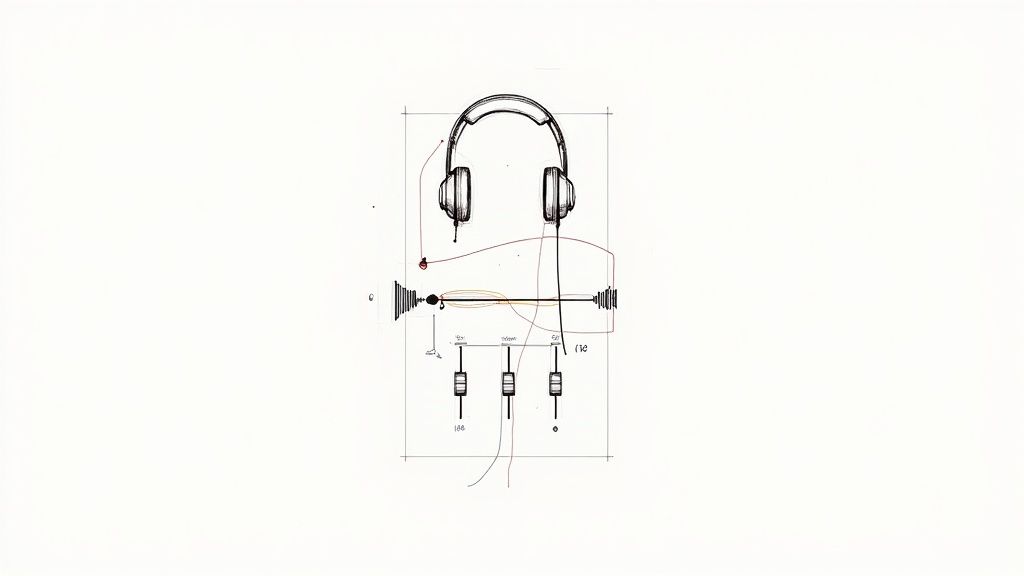
Viewers will forgive grainy visuals, but they will not tolerate poor audio. Audio mixing is the art of balancing dialogue, music, and sound effects to create a clear, professional, and immersive soundtrack. It is one of the most critical video post production tips because it directly impacts the perceived quality of your entire production and a viewer's ability to stay engaged. Bad audio isn't just a distraction; it’s a dealbreaker.
A common mistake is treating audio as an afterthought, simply dropping a music track under dialogue and exporting. This often results in a muddy mix where the music overpowers the speaker or dialogue levels are inconsistent and fatiguing to listen to. The goal is to create a sonic experience where every element has its own space, ensuring your primary message is delivered with clarity and impact.
How to Implement Professional Audio Mixing
A clean and balanced audio mix makes your content sound authoritative and polished. The process involves layering and adjusting individual audio elements to work together harmoniously.
- Prioritize Dialogue: Your voice is the most important element. Use a compressor to even out the volume, making quiet parts louder and loud parts quieter for a consistent level.
- Filter Unwanted Noise: Apply a high-pass filter (around 80-100Hz) to your dialogue track to instantly remove low-frequency rumble from air conditioners or microphone handling.
- Balance Music Levels: Background music should support, not compete with, your voice. A good starting point is to set your music track 18-25dB lower than your dialogue. Use "ducking" to automatically lower music volume when you speak.
- Leave Headroom: Ensure your final audio mix peaks between -3dB and -6dB. This prevents digital clipping and distortion when your video is compressed for platforms like YouTube.
Key Insight: The human ear quickly adapts to volume. Mix at a moderate, conversational level and take regular breaks to reset your hearing. This prevents you from making poor mixing decisions due to ear fatigue.
Manually adjusting EQs, compressors, and levels for every clip is a highly technical and time-consuming task that can intimidate creators. Modern AI-driven platforms like Tubentum automate this entire workflow. The software can automatically master your dialogue, balance it with background music, and ensure the final mix meets broadcast standards for clarity and loudness, serving as a shortcut to a professional sound without the complex process.
3. Pacing Through Editing and Cuts
Pacing is the heartbeat of your video, dictating the rhythm and energy that keeps your audience engaged. It’s the strategic use of cuts, timing, and transitions to control the flow of information, making your content feel dynamic and compelling rather than slow and monotonous. Proper pacing doesn't just hold attention; it shapes the viewer's experience and ensures your message is delivered with maximum impact.
A common post-production mistake is leaving long, unedited segments of speech, creating a tedious, lecture-like experience. This causes viewer fatigue and drop-off. The most effective strategy is to use intentional cuts to create a rhythm that matches your content's tone, whether it’s the quick, energetic pace of a marketing video or the measured, deliberate flow of an educational tutorial.
How to Implement Strategic Pacing
Mastering pacing requires you to think like a conductor, orchestrating the viewer's journey through your content. It’s about making every second count by removing dead air and creating a seamless, engaging narrative flow.
- Vary Shot Lengths: Mix longer takes for complex ideas with shorter, rapid cuts for emphasis or to build excitement. A constant, unchanging shot length quickly becomes monotonous.
- Use J-Cuts and L-Cuts: Create smooth, professional transitions where the audio from the next clip begins before the video (J-cut) or the audio from the previous clip continues over the new video (L-cut).
- Cut on Action or Key Phrases: Make your edits feel invisible by cutting on a gesture, a movement, or at the end of a powerful statement. This draws attention to the content, not the cut itself.
Key Insight: Your video's natural pacing is often hidden beneath pauses, filler words, and rambling sentences. The core of effective pacing is surgically removing these unnecessary elements to tighten the delivery and maintain momentum.
Manually identifying and trimming every "um," "ah," silent pause, and repetitive phrase is an incredibly laborious part of the video post-production workflow. This is where AI-driven automation provides a significant advantage. Tools like Tubentum can analyze your video's transcript and automatically detect and remove these hesitations, instantly tightening your video's pace. This feature acts as an immediate shortcut to crisp, professional pacing, saving countless hours of tedious editing.
4. Elevate Production Value with Motion Graphics
Motion graphics and visual effects are the professional polish that transforms a standard talking-head video into a dynamic and engaging piece of content. This involves integrating animated graphics, text overlays, and visual enhancements to clarify information, reinforce your brand, and maintain viewer interest. Well-executed graphics elevate your video's perceived value and authority, making complex ideas easier to digest.
Many creators skip this step, believing it's too complex or time-consuming, resulting in static, monotonous videos that fail to hold attention. The strategic use of even simple animated elements, like lower thirds for names and titles or kinetic typography to emphasize key points, can significantly boost engagement. It's about guiding the viewer's eye and adding a layer of visual storytelling that complements your spoken words.
How to Implement Motion Graphics Effectively
The goal is to enhance, not distract. Your graphics should serve a clear purpose, whether it's to introduce a new topic, highlight a critical statistic, or simply add a touch of branded professionalism to your video.
- Brand Your Content: Use consistent animated intros, outros, and lower thirds that incorporate your brand's colors, fonts, and logo. This builds brand recognition.
- Clarify Complex Data: Instead of just mentioning a statistic, use an animated bar chart or infographic to visually represent the data, making it more impactful and memorable.
- Guide Viewer Focus: Use animated text callouts, arrows, or highlights to draw attention to specific elements on the screen, which is especially useful in tutorials or presentations.
Key Insight: The most effective motion graphics feel seamlessly integrated, not tacked on. They should match the video's tone and pacing, serving as a natural extension of your narrative. Consistency across your content is a critical part of building a professional brand identity.
Creating custom motion graphics from scratch can be a significant bottleneck in your video post-production workflow. For creators needing efficiency, automated platforms like Tubentum streamline this process by offering pre-built, customizable templates for branded intros, outros, and lower thirds. This offers a valuable shortcut to adding a professional sheen to your videos, ensuring brand consistency without a steep learning curve.
5. Dialogue Editing and Cleanup
Even with stunning visuals, poor audio quality can make a video unwatchable. Dialogue editing and cleanup is the critical process of refining your vocal track to ensure it is clear, intelligible, and free from distracting noises. This goes beyond simple volume adjustments; it involves surgically removing background hums, mouth clicks, harsh breaths, and other imperfections that detract from your message.
A common mistake is assuming that a high-quality microphone captures perfect audio from the start. In reality, even the best equipment will pick up subtle, unwanted sounds. Ignoring these artifacts communicates a lack of professionalism and can cause viewer fatigue, leading them to abandon your content. The goal is to make the audio so clean that the viewer doesn't even notice it, allowing them to focus entirely on your message.
How to Implement Dialogue Editing and Cleanup
Effective audio cleanup involves a multi-pass approach, targeting different issues with specific tools. Think of it as restoring a painting, carefully cleaning one small area at a time rather than applying a single, broad filter.
- Remove Background Noise: Use noise reduction tools to eliminate consistent background sounds like air conditioning, fan hums, or computer noise.
- De-Click and De-Plosive: Target and remove distracting mouth clicks and harsh "p" or "b" sounds (plosives) that can create an unpleasant listening experience.
- Control Breaths: Reduce the volume of breaths so they sound natural but are not distracting. Completely removing them can make the dialogue sound robotic.
Key Insight: The best audio cleanup is transparent. The goal is not to create an artificial, sterile sound but to enhance the natural human voice by removing only the elements that distract from it. Over-processing is just as detrimental as under-processing.
Manually identifying and fixing every click, hum, and breath is one of the most painstaking video post production tips to implement. It requires a trained ear and hours spent in specialized software. AI-driven platforms like Tubentum offer a shortcut to the ideal state by automating this entire process. The system can intelligently identify and remove background noise, smooth out dialogue, and balance audio levels, delivering a professional, studio-quality sound in a fraction of the time. This automation is essential for maintaining a consistent and high-quality output without getting bogged down in technical audio engineering. Learn more about how to automatically remove unwanted sounds from your videos.
6. Color Correction for Technical Issues
Color correction is the technical foundation of a professional-looking video. It is the process of fixing exposure, white balance, and contrast issues to create a clean, neutral, and accurate baseline. This is not about creative style; it’s about correcting problems to ensure your footage looks true-to-life and consistent across every clip.
A common mistake is to jump straight into applying creative filters or "LUTs" on footage that is fundamentally flawed. This only amplifies existing problems, resulting in unnatural skin tones, crushed blacks, or blown-out highlights. Correcting first ensures that any subsequent creative grading is applied to a balanced image, making it easier to match shots from different cameras or lighting conditions and achieve a polished, high-quality final product.
How to Implement Technical Color Correction
The goal of technical correction is to establish a neutral starting point. This is achieved by objectively analyzing and adjusting your footage before any stylistic choices are made.
- Balance White and Exposure First: Use tools like the Lumetri Color panel in Adobe Premiere Pro or DaVinci Resolve’s Color page to adjust your white balance so that whites appear pure white, not yellow or blue. Then, adjust exposure to ensure your subject is properly lit without losing detail in the brightest or darkest parts of the image.
- Match Skin Tones: For business and talking-head videos, accurate skin tones are non-negotiable. Use vectorscopes to check that skin tones fall along the designated "skin tone line," ensuring your subject looks natural and healthy across different clips.
- Use Adjustment Layers: Apply your corrections to an adjustment layer above your clips. This allows you to make non-destructive changes and easily apply the same correction to multiple clips, saving significant time.
Key Insight: Objective data is more reliable than your eyes. Your perception of color can be influenced by your monitor or room lighting. Rely on video scopes (waveform, vectorscope, histogram) to make precise, data-driven decisions for exposure, saturation, and white balance.
This technical, often repetitive, process is a prime candidate for automation, which is why it's a key part of many video post-production tips. While manual correction offers granular control, automated tools like Tubentum can perform initial color correction and balancing based on established professional standards. This provides a perfectly corrected baseline in seconds, acting as a shortcut that allows you to focus your energy on the creative aspects of color grading rather than the tedious technical fixes.
7. Transitions and Effects Management: The Art of Seamless Flow
Transitions are the bridges between your clips, guiding the viewer from one idea to the next. In professional video editing, their purpose is to create seamless continuity and enhance the narrative, not to draw attention to themselves. The most effective transitions are often invisible, serving the story without distracting from the content.
A common mistake, especially for new creators, is to overuse flashy wipes, starbursts, or page-peel effects found in editing software libraries. This approach can make a business video feel dated and unprofessional. Instead, the goal is to use transitions strategically and with purpose, ensuring they support the video’s tone and pacing rather than disrupting it. A simple, clean cut is often the most powerful transition of all.
How to Implement Transitions and Effects Strategically
To manage transitions effectively, you must think of them as punctuation in a sentence. A hard cut is a period, a dissolve is a comma, and a more stylized transition is an exclamation point: use them sparingly for maximum impact.
- Corporate & Educational Content: Stick to subtle dissolves or clean cuts to maintain a professional and authoritative tone. A dissolve can signify a slight passage of time or a shift to a related but different topic.
- Dynamic Vlogs or Marketing Videos: A quick push or slide transition can add energy when moving between different scenes or fast-paced B-roll segments. Keep them consistent.
- Hiding Jump Cuts: A common challenge in talking-head videos is the "jump cut" after removing a mistake. A subtle zoom-in (a "punch-in") can effectively mask this cut, making the edit feel intentional rather than jarring.
Key Insight: The best transition is the one your audience doesn't notice. Its job is to maintain viewer immersion, not break it. Over-editing with decorative effects is a clear sign of an amateur, while intentional, minimal transitions signal professionalism and confidence in your content.
Manually applying and tweaking individual transitions to hide every minor cut or breath is a tedious task. This is another area where modern tools accelerate the post-production workflow. Automated platforms like Tubentum handle jump cuts and pacing intelligently, often using subtle zooms and clean cuts by default. This feature is a shortcut to a polished final product, eliminating the need to manually place dozens of minor transitions so you can focus on the broader narrative structure.
8. Footage Organization and Asset Management
Effective video post production isn't just about creative edits; it begins with a disciplined, systematic approach to organizing your files. Asset management is the foundational practice of structuring your raw footage, audio files, graphics, and project files so they are easily accessible and logically arranged. It’s the behind-the-scenes work that prevents catastrophic errors, lost files, and hours of frustrating searches.
A common mistake, especially for solo creators, is to dump all assets into a single folder. This chaotic approach quickly becomes unmanageable, turning simple revisions into a nightmare of finding the right clip or graphic. A professional workflow treats organization as the first step of editing, not an afterthought. This ensures that you, or anyone on your team, can navigate the project with speed and clarity.
How to Implement Systematic Asset Management
The goal is to create a repeatable template that you can use for every new video project, building muscle memory for an efficient workflow. For comprehensive strategies on organizing and managing your ever-growing video library, refer to a guide on Digital Asset Management for Video.
- Standardize Folder Structures: Before importing anything, create a master project folder with sub-folders like
01_Footage,02_Audio,03_Graphics,04_Project_Files, and05_Exports. - Use Consistent Naming Conventions: Rename files logically upon import. For example,
ClientName_ProjectName_CamA_Take01.mp4is infinitely more useful thanDJI_0587.MP4. - Create Proxies for Performance: For high-resolution footage (like 4K), generate low-resolution "proxy" files. Editing with these smaller files dramatically speeds up timeline performance and scrubbing.
Key Insight: Your post-production workflow is only as fast as your ability to find what you need. A 10-minute investment in organization at the start can save you hours of searching and stress during the editing process.
Maintaining this level of organization is crucial for a streamlined process, but it still requires significant manual effort. Tools like Tubentum can simplify parts of this by automatically handling the creation of projects and organizing outputs. By automating the tedious aspects of file handling and editing itself, you get a shortcut to the creative parts of post-production, knowing your assets are structured and secure, which is a key principle in learning how to speed up video editing.
9. Color Matching and Multi-Camera Synchronization
When you cut between different camera angles or clips filmed at different times, the last thing you want is a jarring shift in color or brightness. Inconsistent visuals distract the viewer and signal a lack of professionalism. Color matching is the crucial post-production process of unifying footage so that every shot, regardless of the camera or lighting, feels like it belongs to the same cohesive visual world.
This goes beyond simple color correction. It's about meticulously aligning exposure, white balance, and saturation so that a viewer’s eye moves seamlessly from a wide shot to a close-up without noticing any technical discrepancies. A common mistake is to color correct each clip in isolation, leading to a final product where skin tones or background colors subtly change from one angle to the next, which can unconsciously erode viewer trust and engagement.
How to Implement Color Matching
The goal is to establish a primary "hero" shot and then adjust all other angles and clips to match it perfectly. This ensures visual harmony, especially in multi-camera interviews or tutorials.
- Establish a Baseline: Choose your primary camera angle (often the A-cam) as the reference. Correct its color and exposure first to create the ideal look for the scene.
- Focus on Skin Tones: The human eye is most sensitive to variations in skin tones. Use your software’s vectorscopes to align the skin tone line across all clips, ensuring your subject looks consistent.
- Use Adjustment Layers: In editors like Adobe Premiere Pro, apply your color matching adjustments to an adjustment layer above your clips. This allows you to apply a single, consistent look to multiple clips at once, saving significant time.
Key Insight: The most effective color matching begins during production. Using identical camera settings, a custom white balance, and a color chart on set can reduce post-production work from hours to minutes.
Manually matching colors frame by frame is one of the more tedious video post-production tips to implement, demanding a keen eye and extensive technical skill. For business creators focused on efficiency, the ideal workflow is to minimize these inconsistencies from the start. While automated tools like Tubentum focus on structural edits like removing silences and adding dynamic zooms, establishing a solid, consistent visual foundation through proper production and efficient matching techniques ensures the final automated output looks polished and professional without jarring visual shifts.
10. Master Your Export Settings for Flawless Delivery
The export process is the final, critical checkpoint in your video post-production workflow. All the effort you invested in editing, color grading, and audio mixing can be instantly undone by incorrect export settings. This step ensures your video is properly encoded and optimized for its intended platform, guaranteeing it looks and sounds exactly as you designed it, whether on YouTube, social media, or a company website.
A common mistake is using a one-size-fits-all export preset for every platform. This often results in quality degradation, massive file sizes that hinder uploads, or even playback errors. The most effective strategy is to treat exporting as a deliberate, platform-specific task. Understanding the nuances of codecs, bitrates, and resolutions for each delivery channel is essential for maintaining professional quality and ensuring a seamless viewer experience.
How to Implement Optimal Export Settings
To export effectively, you must align your settings with the technical requirements of your destination platform. This isn't just about clicking "Export"; it's about making informed choices that preserve your video's integrity.
- For YouTube: Use the H.264 codec, a 16:9 aspect ratio (like 1920x1080 or 3840x2160), and match the original frame rate. YouTube provides specific bitrate recommendations based on resolution and frame rate, which are crucial for avoiding unnecessary compression.
- For Social Media (Vertical Video): Export using a 9:16 aspect ratio (1080x1920) with the H.264 codec. Keep file sizes smaller with a lower bitrate to accommodate mobile viewing and faster loading.
- For an Archival Master: Before creating compressed delivery files, always export a high-quality master version using a codec like Apple ProRes or Avid DNxHD. This lossless file is your permanent, high-fidelity backup for future edits or repurposing.
Key Insight: Your export settings are the bridge between your editing timeline and your audience. A weak bridge compromises the entire journey. Always create a high-quality master file first, then use that to create platform-specific versions.
Manually configuring these settings for every video and every platform is repetitive and prone to error. This is where modern tools offer a significant advantage. An automated editing platform like Tubentum provides a shortcut by handling the technical complexities for you, delivering perfectly optimized files for various platforms without requiring you to dive into technical specifications. This ensures your content is always presented in the best possible quality, reinforcing the professionalism of your brand. You can learn more about mastering these final steps with our comprehensive video editing checklist.
10-Point Video Post-Production Tips Comparison
| Item | 🔄 Implementation complexity | ⚡ Resource & time | 📊 Expected outcomes | 💡 Ideal use cases | ⭐ Key advantages |
|---|---|---|---|---|---|
| Color Grading and Correction | High — skilled colorist & calibrated workflow | High — DaVinci/Resolve, calibrated monitor, time-intensive | Professional, consistent look across shots | Branded business content, high-value marketing videos | Transforms mood and visual consistency |
| Audio Mixing and Sound Design | High — expert mixing techniques & acoustics | High — pro DAW, microphones, monitoring, studio time | Clearer dialogue & impactful soundtrack | All business videos, especially interviews and podcasts | Boosts perceived quality and professionalism |
| Pacing Through Editing and Cuts | Medium — editorial judgment & timing skills | Moderate — NLE software, iterative review sessions | Maintains engagement; clarifies storytelling rhythm | Talking-head videos, marketing content, tutorials | Controls rhythm to retain viewer attention |
| Motion Graphics and Visual Effects | High — advanced animation/compositing skills | High — After Effects/Cinema4D, strong GPU, long renders | Elevated production value; clearer information delivery | Intros, explainers, branding, data visualization | Adds polish and memorable visuals |
| Dialogue Editing and Cleanup | Medium — detailed audio editing expertise | Moderate — spectral tools, careful multi-pass work | Natural, intelligible speech; reduced noise/artifacts | Interviews, voice-overs, podcasts, online courses | Rescues and clarifies spoken content |
| Color Correction for Technical Issues | Medium — technical color adjustments & scopes | Moderate — scopes, curves, per-shot corrections | Neutral baseline; matched exposure & white balance | Multi-camera shoots, mixed lighting scenes | Salvages footage and enables consistent grading |
| Transitions and Effects Management | Low–Medium — implementation + taste required | Low — quick to apply but may impact playback | Smooth continuity when subtle; risk of distraction if overused | Corporate videos, vlogs, training modules | Hides cuts and adds subtle polish |
| Footage Organization and Asset Management | Medium — planning, conventions, tooling | Moderate — initial setup, storage, proxies, backups | Faster edit workflow, fewer errors, scalable collaboration | All business video projects, especially with teams | Greatly improves workflow efficiency and reliability |
| Color Matching & Multi-Camera Synchronization | High — precise matching & sync expertise | High — reference charts, per-camera adjustments, timecode | Seamless multi-angle continuity across cameras | Interviews, live events, multi-cam tutorials | Enables smooth angle switching and consistency |
| Export Settings & Delivery Optimization | Medium — knowledge of codecs & platform specs | Low–Moderate — final exports, multiple presets/outputs | Correct playback, optimized file sizes, preserved color | Any platform delivery: YouTube, social, website | Prevents compatibility issues and preserves quality |
From Tedious to Ten-Minute: The Future of Your Video Workflow
You’ve navigated the critical components of a polished final product, from the technical precision of color correction and audio mixing to the creative flair of motion graphics and pacing. We’ve broken down ten distinct pillars of post-production, covering everything from initial footage organization and dialogue cleanup to the final export settings that deliver your content to the world. Each of these steps represents a lever you can pull to dramatically elevate the quality and impact of your videos.
The core lesson is this: professional video post-production isn't about mastering one secret trick. It's about building a reliable, repeatable system. When you approach your edits with a structured workflow-organizing assets first, cleaning audio, correcting color, then refining the cut-you eliminate guesswork and ensure a consistently high-quality output every single time. This systematic approach is the true differentiator between amateur creators and professional brands.
The Most Important Takeaways from These Video Post-Production Tips
While every tip in this guide adds value, let's distill the process down to its most crucial, non-negotiable elements for business and talking-head creators:
- Clarity Above All: Your primary goal is to deliver a clear, concise message. This makes dialogue editing, audio cleanup, and strategic pacing your most powerful tools. If your audience can't hear or understand you, even the most stunning color grade is worthless.
- Consistency is Your Brand: Consistent color matching across multi-camera setups and a standardized approach to graphics and transitions build brand recognition. Your audience should be able to recognize your content by its look and feel alone.
- Efficiency Unlocks Growth: Mastering export settings and asset management may seem tedious, but these processes save you hours in the long run. They prevent re-exports, corrupted files, and frantic searches for B-roll, freeing up your time to create more content.
Your Next Step: From Manual Labor to Intelligent Workflow
The recurring challenge across all these tips is the significant time investment required for manual execution. Perfecting audio, trimming every silence, and synchronizing multiple camera angles are essential tasks, but they are also incredibly time-consuming and repetitive. This is where a fundamental shift in your workflow becomes a competitive advantage.
The modern creator doesn't just work harder; they work smarter by delegating mechanical tasks to intelligent tools. This frees up their creative energy for what truly matters: storytelling, strategy, and connecting with their audience.
Instead of spending 80% of your editing time on the tedious groundwork, you can leverage automation to handle it for you. Platforms designed for this purpose, like Tubentum, automate the most repetitive parts of the editing process. They can instantly remove filler words and silences, generate engaging jump cuts to improve pacing, and even master your audio-tasks that would otherwise consume the bulk of your post-production hours.
Adopting this hybrid approach-where automation handles the mechanics and you direct the creative vision-transforms video post-production from a bottleneck into a powerful engine for your business. You're no longer just an editor; you become a creative director, focusing on high-level improvements rather than low-level labor. By implementing these advanced video post-production tips with the right tools, you can finally produce more professional content, faster than ever before, and reclaim your time to focus on growing your brand.
Ready to eliminate tedious editing and reclaim your creative time? Tubentum automates the most time-consuming post-production tasks, like silence removal and audio mastering, so you can focus on what really matters. See how it transforms your workflow by visiting Tubentum today.