In today's fast-paced digital market, creating professional business videos is no longer optional—it's essential for growth, engagement, and brand authority. However, the traditional video editing process is a notorious bottleneck, consuming hours of valuable time that creators and entrepreneurs simply don't have. The manual task of cutting silences, removing filler words, and arranging clips is tedious and drains creative energy.
The ideal state for any business is to produce high-quality, engaging content consistently and efficiently, transforming raw footage into polished, ready-to-publish videos with minimal effort. This is where AI steps in, offering a shortcut to this ideal state. The rise of AI-powered video editing tools has revolutionized the workflow, automating the most time-consuming parts of the process. For businesses focused on talking-head videos, webinars, and marketing content, the goal is clear: find a tool that acts as an intelligent assistant, handling the repetitive work so you can focus on strategy and content.
This guide dives deep into the best AI tool for video editing free options available today, helping you find the perfect fit to streamline your production. We will provide a detailed breakdown of each platform, complete with direct links and screenshots, so you can make an informed decision without the guesswork. For a broader overview and comparison of different platforms, you can also explore the best AI video editor tools for a comprehensive look at the market. Our focus here is on practical, business-oriented features that save time and elevate your video quality, helping you achieve your content goals faster.
1. Microsoft Clipchamp
Microsoft Clipchamp stands out as a formidable, browser-based video editor, particularly for creators integrated into the Microsoft ecosystem. Its primary strength lies in offering a surprisingly robust free tier that directly addresses a major pain point for new creators: watermark-free exports. This makes it an excellent starting point for producing professional-looking content without an initial investment.
The platform is designed for efficiency, making it one of the best AI tools for video editing for free, especially for business-focused content like tutorials, marketing clips, and social media shorts. Its AI-powered features are practical and aimed at accelerating common, repetitive tasks.
Core AI Features & Use Cases
Clipchamp’s AI is built for speed and accessibility. The auto-captions tool is a significant time-saver, generating accurate subtitles in moments. The silence removal feature is another highlight, automatically trimming dead air from talking-head videos, which tightens pacing and improves viewer retention instantly. These features are similar to foundational tools found in more advanced platforms like Tubentum, providing a solid entry into AI-enhanced workflows.
For creators repurposing content, the text-to-speech function offers a quick way to add voiceovers without recording audio. This is ideal for creating faceless YouTube content or adding narration to screen recordings.
Practical Tip: Use the silence removal tool as the first step in your editing process for any interview or tutorial video. It drastically cuts down the initial rough cut time, letting you focus on creative edits sooner.
Pricing and Limitations
- Free Plan: Unlimited watermark-free exports up to 1080p resolution, access to free stock media and effects, and use of most AI tools.
- Microsoft 365 Subscription ($6.99/mo+): Unlocks premium stock assets, 4K exports, brand kit management, and content backup.
The free plan is exceptionally generous, but it's important to note potential AI usage limits and the paywall for premium stock media and 4K resolution. While Clipchamp excels at simplifying edits, creators looking for advanced AI-driven content generation, like automatic b-roll suggestions or full video creation from a script, will find platforms like Tubentum offer a more comprehensive shortcut to a finished product.
- Website: Microsoft Clipchamp
2. Blackmagic Design DaVinci Resolve
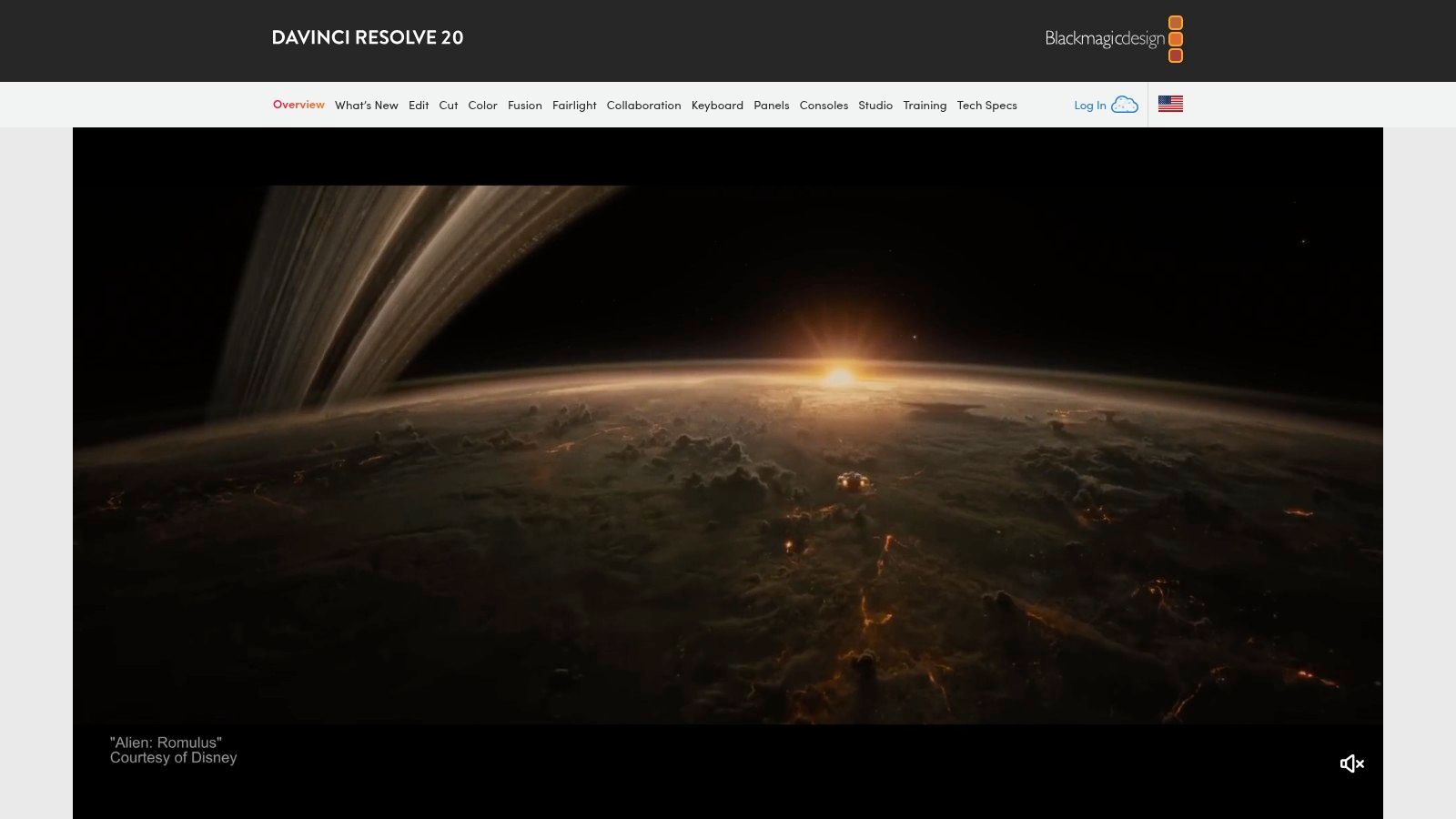
DaVinci Resolve is a heavyweight desktop application that brings professional-grade editing, color correction, VFX, and audio post-production into a single workflow. While known for its cinematic prowess, its free version is incredibly powerful, making it one of the best AI tool for video editing free options for creators demanding precision and control beyond what browser-based editors offer.
The platform is ideal for creators who plan to scale their production quality significantly. Its AI-driven features, even in the free tier, are designed to streamline complex tasks, providing a high ceiling for business content like polished tutorials, online courses, and detailed product showcases that require more than simple cuts.
Core AI Features & Use Cases
Resolve’s AI, powered by the "Neural Engine," focuses on intelligent analysis and automation within a traditional timeline. The dialogue leveler and voice isolation tools are standout free features, perfect for cleaning up audio in interviews or tutorials shot in less-than-ideal environments. The recent addition of AI-powered auto-subtitles further automates the captioning process, saving significant time.
For creators who want to quickly generate videos from text, platforms like Tubentum offer a more direct, script-to-video workflow. However, Resolve’s AI excels at enhancing manually edited projects, giving you precise control over the final output.
Practical Tip: Use the voice isolation tool on talking-head footage as a first pass on your audio. It can instantly remove background noise like fans or street hum, dramatically improving the perceived production value of your business videos.
Pricing and Limitations
- Free Plan: Provides access to the vast majority of editing, color, Fusion (VFX), and Fairlight (audio) tools, including key AI features like auto-subtitles and voice isolation, with exports up to 4K.
- Studio ($295 one-time): Unlocks advanced Neural Engine features like magic mask (AI rotoscoping), smart reframe for social media, and faster performance with certain hardware.
The free version is remarkably robust, but the steeper learning curve is a significant consideration compared to simpler web-based tools. While its AI tools are powerful enhancements, creators seeking an all-in-one content generation shortcut, where AI handles everything from scripting to finding b-roll, will find Tubentum’s automated approach more efficient.
- Website: Blackmagic Design DaVinci Resolve
3. CapCut
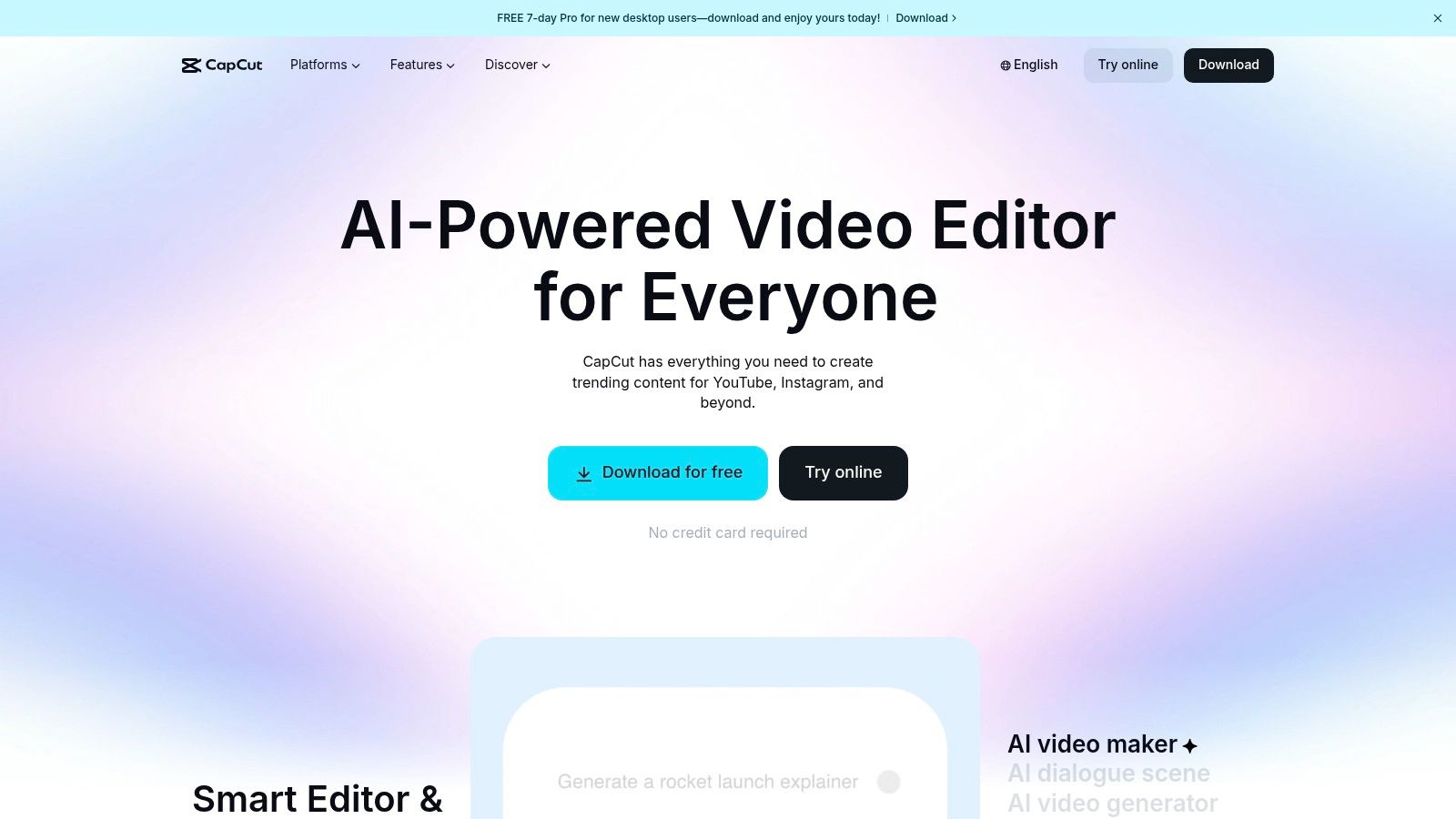
CapCut has rapidly evolved from a mobile-first editor into a comprehensive, multi-platform powerhouse, making it a strong contender for the best AI tool for video editing for free. It excels in delivering a fast, template-driven workflow perfect for social media content, YouTube Shorts, and marketing videos. Its main draw is a rich library of trendy effects, transitions, and AI features that are accessible across web, desktop, and mobile devices, ensuring a seamless editing experience anywhere.
The platform is designed for creators who need to produce high-engagement content quickly. Its AI tools are geared towards automating the most time-consuming aspects of social video production, from captions to formatting, allowing creators to focus on speed and creativity.
Core AI Features & Use Cases
CapCut’s AI features are built for immediate impact. The auto-captions tool is renowned for its accuracy and diverse stylization options, making videos instantly more accessible and engaging. For creators needing to remove distracting backgrounds from talking-head videos, the auto-cutout (background removal) feature is remarkably precise, even without a green screen.
A standout feature is transcript-based editing, which allows users to edit video by simply deleting words from the text transcript. This mirrors the efficient workflow found in advanced editors like Tubentum and drastically speeds up the process of refining spoken content. Additionally, the auto-reframe tool intelligently adjusts video aspect ratios for different platforms, saving significant time when repurposing content.
Practical Tip: Use the transcript-based editing feature to create a rough cut of your talking-head videos. Quickly remove filler words and mistakes in the text to create a clean video timeline before adding any effects or b-roll.
Pricing and Limitations
- Free Plan: Exports up to 4K resolution with a small watermark on some templates/effects, access to a large library of free assets, and core AI tools.
- Pro Plan (Varies, approx. $7.99/mo): Removes all watermarks, unlocks premium effects, templates, and stock media, and provides cloud storage space.
The free version is incredibly capable for most social media needs. However, advanced AI features and the most desirable assets are often locked behind the Pro subscription. While CapCut automates specific editing tasks well, creators looking for an AI that generates a complete, polished video with b-roll and transitions from just a script will find Tubentum offers a more comprehensive, end-to-end shortcut.
- Website: CapCut
4. Descript
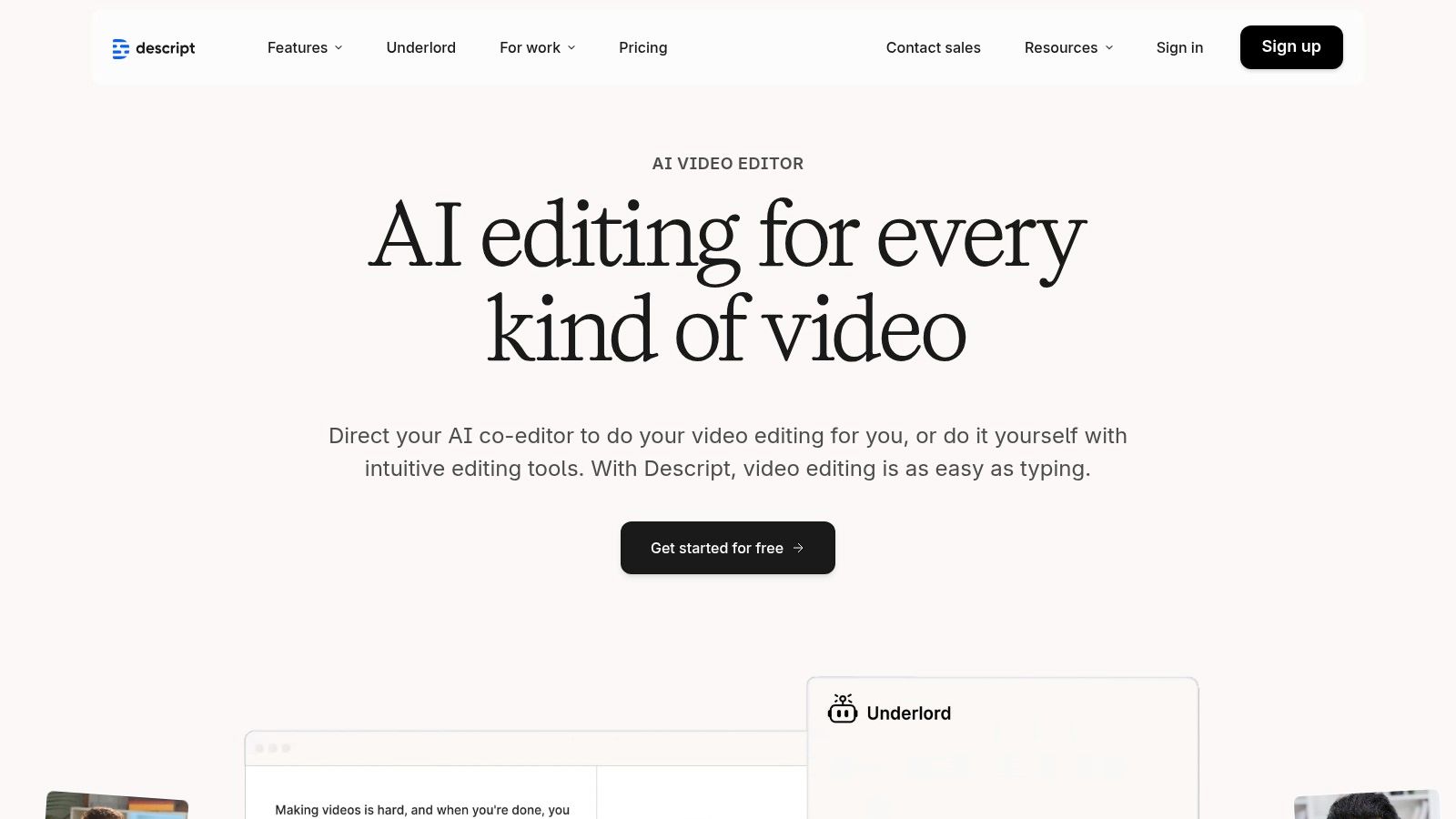
Descript revolutionizes video editing by transforming it into a text-based workflow, making it a uniquely powerful and intuitive tool for creators focused on dialogue. Instead of manipulating a traditional timeline, you edit the auto-generated transcript. Deleting a word or sentence in the text automatically cuts the corresponding section from the video and audio, dramatically speeding up the editing process for conversational content.
This "edit-like-a-doc" approach makes Descript arguably the best AI tool for video editing for free for podcasters, coaches, and anyone producing talking-head videos. Its AI is laser-focused on cleaning up spoken audio and repurposing long-form content with minimal effort.
Core AI Features & Use Cases
Descript’s core strength is its AI-powered transcription and filler word removal. With one click, you can find and delete all instances of "um," "uh," and other crutch words, instantly making your delivery sound more polished and professional. The Studio Sound feature further enhances this by using AI to remove background noise and echo, simulating a studio-quality recording environment.
The platform also streamlines content repurposing. You can highlight key sections of your transcript and ask the AI co-editor to generate social media clips, summaries, or show notes. This is a foundational step toward the automated content generation seen in platforms like Tubentum, which can build entire videos from a script with AI. For a detailed comparison, you can learn more about how Descript stacks up against other AI-first platforms.
Practical Tip: Use the "Find > Filler Words" function immediately after transcription. Removing them in bulk will be the single biggest time-saver for cleaning up any interview or monologue.
Pricing and Limitations
- Free Plan: Includes 1 hour of transcription and 1 watermark-free export per month (up to 720p). Studio Sound and filler word removal are included.
- Creator Plan ($12/mo): Offers 10 hours/month of transcription, unlimited watermark-free exports (up to 4K), and more AI features.
- Pro Plan ($24/mo): Provides 30 hours/month of transcription and advanced AI tools.
The free plan is excellent for trying the unique workflow but is limited by its one-hour transcription cap. For creators consistently producing content, a paid plan is almost necessary. While Descript excels at cleaning up existing footage, those seeking to generate complete videos from just a text prompt, including AI-sourced b-roll and voiceovers, will find Tubentum's end-to-end creation process a more direct shortcut.
- Website: Descript
5. Runway
Runway positions itself not just as an editor, but as a comprehensive, browser-based AI-native creative suite. It’s a glimpse into the future of video creation, where generative AI models are directly integrated into the editing workflow. This makes it an ideal platform for creators and marketers looking to experiment with cutting-edge visual effects, generate unique B-roll, or add a surreal, artistic flair to their projects without needing complex software.
For those who want to push creative boundaries, Runway is arguably the best AI tool for video editing free of charge for initial exploration. Its strength lies in offering direct access to powerful generative models, allowing for rapid iteration and the creation of visuals that are otherwise impossible to produce without specialized skills.

Core AI Features & Use Cases
Runway’s features are centered on generative AI. Its Gen-2 model allows users to generate short video clips from text prompts or still images, perfect for creating unique B-roll, animated logos, or abstract backgrounds. Other powerful tools include Inpainting, which removes objects from video, and Infinite Image, which expands images beyond their original borders.
These tools are excellent for adding high-production-value effects to marketing videos or social media content. For instance, you could remove a distracting element from a product shot or generate a unique video transition from a simple text description.
Practical Tip: Use the Text-to-Video feature to quickly visualize concepts for marketing campaigns. It allows you to create animated storyboards or proof-of-concept clips in minutes, saving significant time and resources in the pre-production phase.
Pricing and Limitations
- Free Plan: Provides a set amount of one-time credits to experiment with generative AI tools, up to three projects, 5GB of assets, and 720p exports.
- Standard ($12/user/mo): More credits, 10 projects, 4K exports, and access to more AI Magic Tools.
The free plan's credits are a significant limitation for sustained use, making it more of a trial than a long-term free solution. While Runway excels at generating novel clips and effects, it requires hands-on direction. For creators seeking an automated end-to-end solution that builds an entire video from a script with relevant footage and effects, a platform like Tubentum offers a more direct shortcut to a finished business video.
- Website: Runway
6. VEED.IO
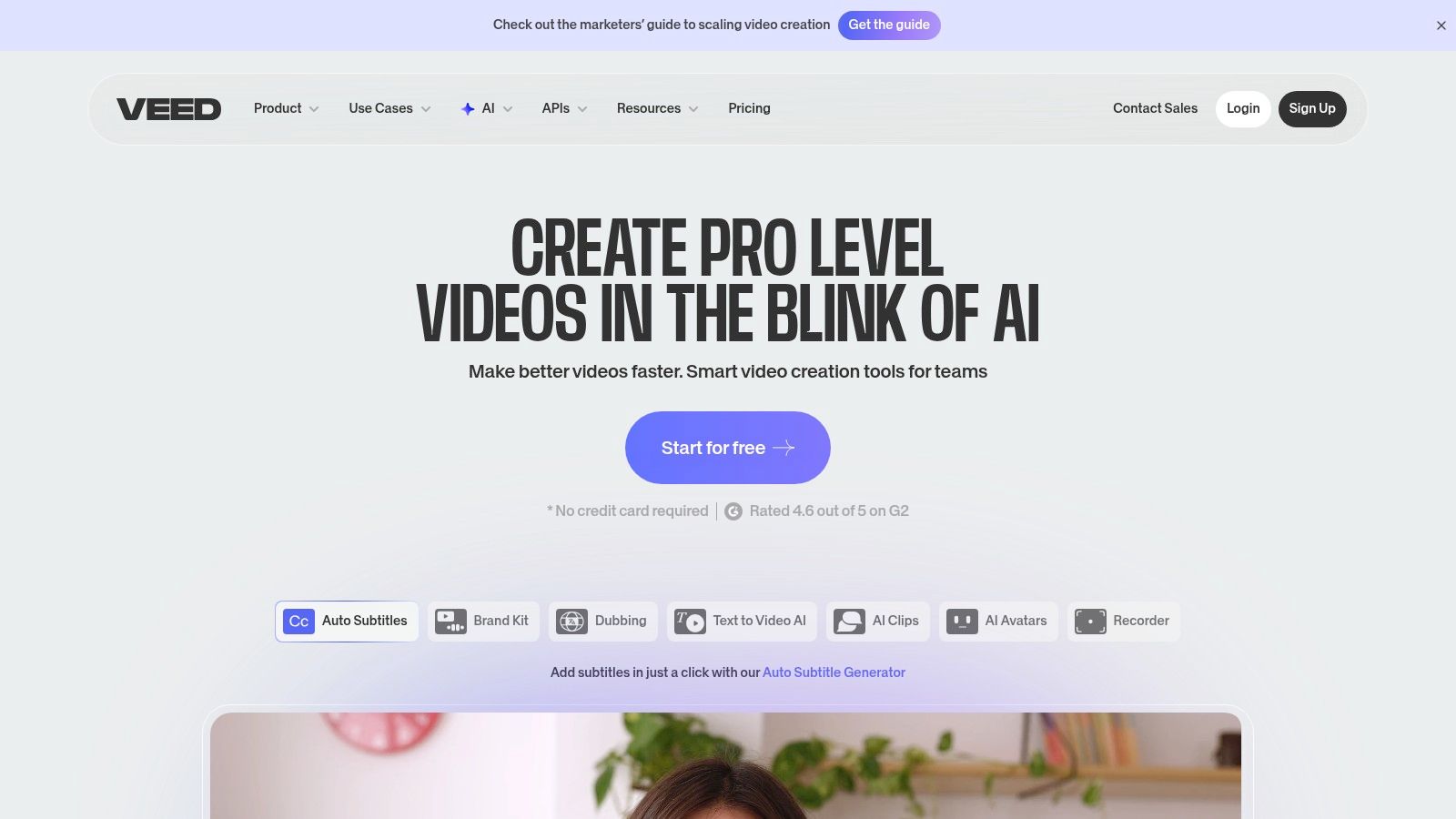
VEED.IO positions itself as a streamlined online video suite designed for speed and collaborative workflows, making it a powerful contender for teams and creators who need to produce content quickly. Its standout feature is a comprehensive set of AI-driven tools focused on refining audio and visual presentations, especially for talking-head videos common in marketing and educational content. This makes it one of the best AI tools for video editing for free when the goal is rapid, professional polish.
The platform is engineered for browser-based efficiency, allowing users to move from recording to editing to sharing without downloading software. Its AI capabilities are geared towards correcting common recording imperfections and enhancing accessibility.
Core AI Features & Use Cases
VEED.IO excels with its AI toolkit for audio and visual clean-up. The AI subtitles and translator/dubbing features are incredibly robust, enabling creators to quickly make their content globally accessible. A unique and powerful tool is the eye-contact correction, which digitally adjusts the speaker's gaze to look directly at the camera, significantly boosting engagement in corporate videos and tutorials.
The platform also includes essential tools like background noise removal and a background remover, which are fundamental for creating clean, professional-looking video. While these tools automate tedious tasks, platforms like Tubentum take this a step further by using AI to generate the entire video structure and content from a script, offering a more complete shortcut to a finished asset.
Practical Tip: Use the eye-contact correction feature on any video where you're reading from a script off-camera. This small adjustment creates a much stronger connection with the viewer and elevates the perceived quality of the production.
Pricing and Limitations
- Free Plan: Watermarked exports up to 720p, 2GB storage, and limited access to AI tools like auto-subtitles (30 mins/month).
- Basic Plan ($18/mo): Removes the watermark, offers 1080p exports, and increases AI credit limits.
- Pro Plan ($30/mo): Unlocks translation, stock media, brand kits, and more extensive AI feature usage.
The free plan is useful for testing the tools, but the watermark is a significant drawback for professional use. The real power of VEED.IO's AI, particularly for translation and eye-contact correction, is gated behind paid tiers, making it a premium solution for businesses that can justify the cost.
- Website: VEED.IO
7. Kapwing
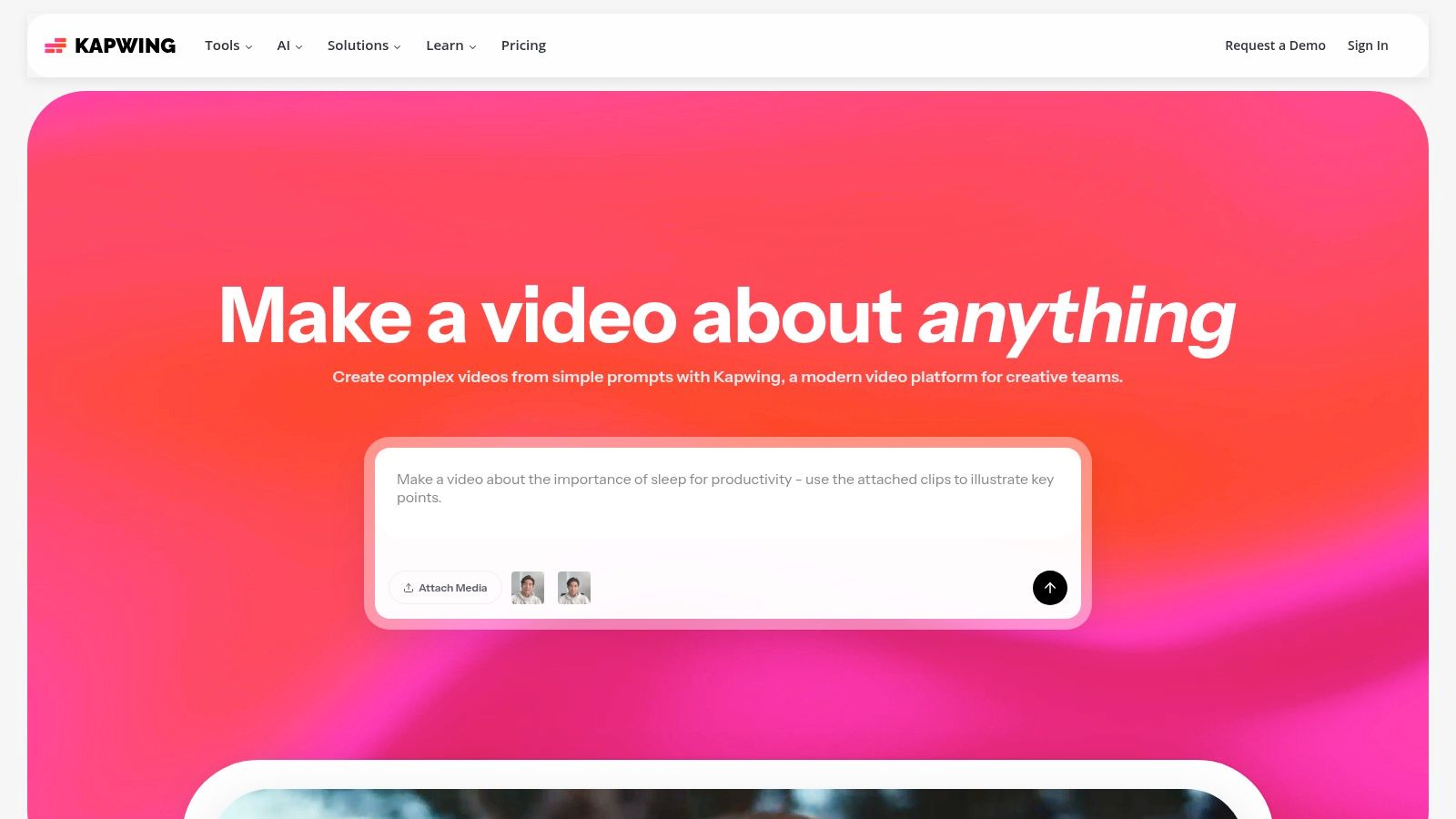
Kapwing has established itself as a go-to collaborative online editor, particularly for teams and individuals focused on creating and repurposing content for social media. It excels at fast-turnaround tasks, making it a strong contender for the best AI tool for video editing for free when speed is a priority. Its accessible, browser-based interface requires no downloads, allowing creators to jump directly into editing short-form content.
The platform is built around a credit-based system for its AI features, which provides a clear, metered approach to using advanced tools. This is ideal for creators who need specific AI functions like subtitling or translation for a few videos without committing to a full subscription.
Core AI Features & Use Cases
Kapwing’s AI toolkit is designed for practicality and social media optimization. The auto-subtitle and translate tools are standout features, enabling users to quickly make their content accessible to a global audience. The AI can also generate a transcript, which is perfect for creating blog posts or show notes from video content.
For engaging short-form videos, the platform offers an AI lip-sync tool to dub audio in different languages and a text-to-speech generator for voiceovers. These features are great for marketers and course creators looking to quickly adapt a single video for multiple platforms and regions. While effective for individual tasks, creators seeking an all-in-one system that generates entire videos from text, complete with b-roll and voiceover, will find Tubentum offers a more streamlined shortcut.
Practical Tip: Use Kapwing's "Smart Cut" feature (silence removal) on your raw footage first. Then, immediately run the auto-subtitle tool to get a transcript and captions, which you can edit simultaneously with your video timeline.
Pricing and Limitations
- Free Plan: Exports up to 4 minutes long with a watermark at 720p resolution. Provides 10 minutes of transcription credits per month.
- Pro Plan ($16/mo billed annually): Removes watermarks, allows exports up to 2 hours long in 4K, and provides 300 transcription/translation credits per month.
The free plan's primary limitations are the watermark and the short export duration, making it best suited for very short social clips. The credit system for AI tools, while transparent, can become restrictive for users producing content at a high volume.
- Website: Kapwing
8. Canva Video Editor
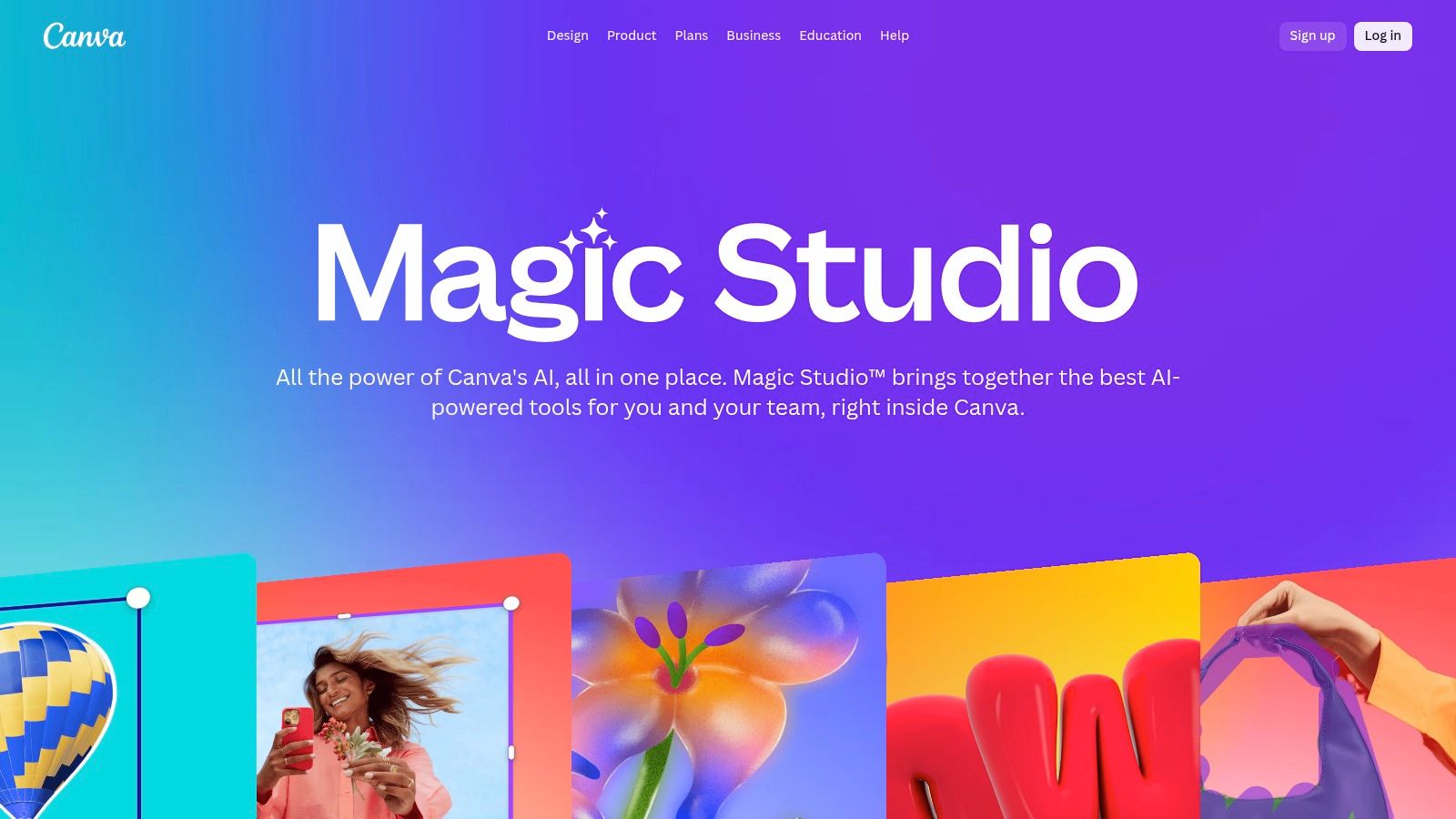
Canva has evolved from a graphic design powerhouse into a surprisingly capable video editor, making it a go-to for marketers and creators who prioritize speed and brand consistency. Its strength lies in a massive template library and an intuitive, drag-and-drop interface that simplifies video creation for non-editors. This makes it one of the best AI tools for video editing for free when the goal is producing on-brand social media content quickly.
The platform is designed for a seamless cross-device workflow, allowing users to start a project on a desktop and make quick edits on mobile. Its AI features are geared towards enhancing visuals and automating simple, yet time-consuming, tasks.
Core AI Features & Use Cases
Canva’s AI toolkit is integrated directly into its design-centric workflow. The Magic Media feature allows you to generate short video clips from a text prompt, perfect for creating unique b-roll or abstract backgrounds. Magic Animate applies smooth, pre-set animations to elements in your video with a single click, saving significant time on manual keyframing for intros or call-to-action graphics.
For audio, its audio enhancement tool cleans up voiceovers by reducing background noise and normalizing volume. The platform's auto highlights tool (Beat Sync) can also automatically sync your video clips to the beat of a background music track, ideal for creating dynamic highlight reels.
Practical Tip: Use Magic Animate on text and graphic elements in your video templates. It’s a fast way to make static designs feel dynamic and professional without any animation experience.
Pricing and Limitations
- Free Plan: 5GB of cloud storage, access to a large library of free templates and assets, and use of some AI tools (with credit limits). Exports up to 1080p.
- Canva Pro ($14.99/mo): Unlocks premium stock assets, Brand Kit, Background Remover, more AI credits, and 1TB of storage.
While Canva excels at template-based and short-form video, its free plan gates many of its most powerful AI features and assets behind the Pro subscription. Creators needing more advanced AI-driven editing, like automatic clip sequencing from a script or AI-suggested b-roll that truly tells a story, will find that platforms like Tubentum provide a more direct path to a completed business video.
- Website: Canva Video Editor
9. InVideo AI
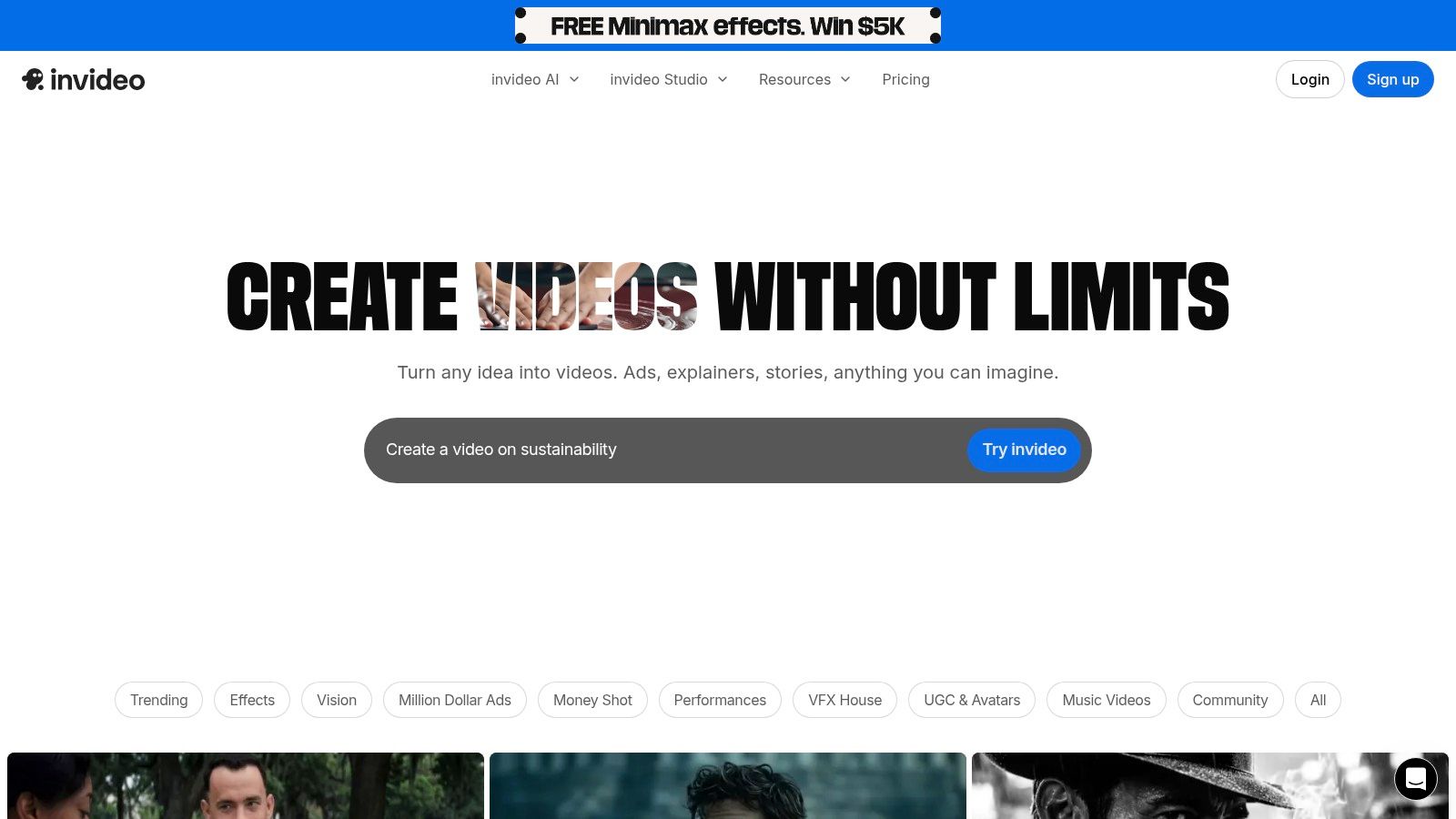
InVideo AI positions itself as a powerful, AI-first video generator, designed to take a simple text prompt or script and transform it into a shareable video in minutes. Its core strength is speed, making it a go-to tool for marketers, social media managers, and businesses that need to produce promotional videos, ads, or explainers at scale and with minimal manual effort.
This platform shines in its script-to-video workflow, which automates the most time-consuming parts of creation: sourcing media and synchronizing it with a narrative. It's a prime example of an AI tool for video editing for free that prioritizes content generation over traditional, timeline-based editing, allowing for rapid ideation and output.
Core AI Features & Use Cases
InVideo's primary AI function is its script-to-video generator. Users input a script, and the AI selects relevant stock footage and images, adds text overlays, and syncs everything to an AI-generated voiceover or uploaded audio. This is ideal for quickly creating marketing videos for social media ads or short informational clips without filming any new content.
The platform also includes AI voiceovers and AI avatars, enabling the creation of presenter-led videos without a camera or microphone. This feature set is particularly useful for producing consistent training materials or multi-language marketing campaigns efficiently. While InVideo automates the first draft, platforms like Tubentum offer a more refined shortcut, using AI to structure and polish user-recorded content for maximum audience engagement.
Practical Tip: When using the script-to-video feature, be as descriptive as possible in your prompts. Specify the desired mood, visual style, and target platform (e.g., "an upbeat, modern promo video for Instagram Reels") to guide the AI toward a more accurate first draft.
Pricing and Limitations
- Free Plan: Allows users to create videos with a watermark, offering a weekly allowance of AI generation minutes and a limited number of exports.
- Plus Plan ($25/mo): Removes the watermark, increases AI generation minutes, provides more monthly exports, and grants access to a larger stock media library.
- Max Plan ($49/mo): Offers significantly more AI minutes, exports, and storage for high-volume creators and agencies.
The free plan is excellent for testing concepts and experiencing the workflow, but the prominent watermark makes it unsuitable for professional use. The real power is unlocked in the paid tiers, which are necessary for anyone looking to publish their creations.
- Website: InVideo AI
10. Wisecut
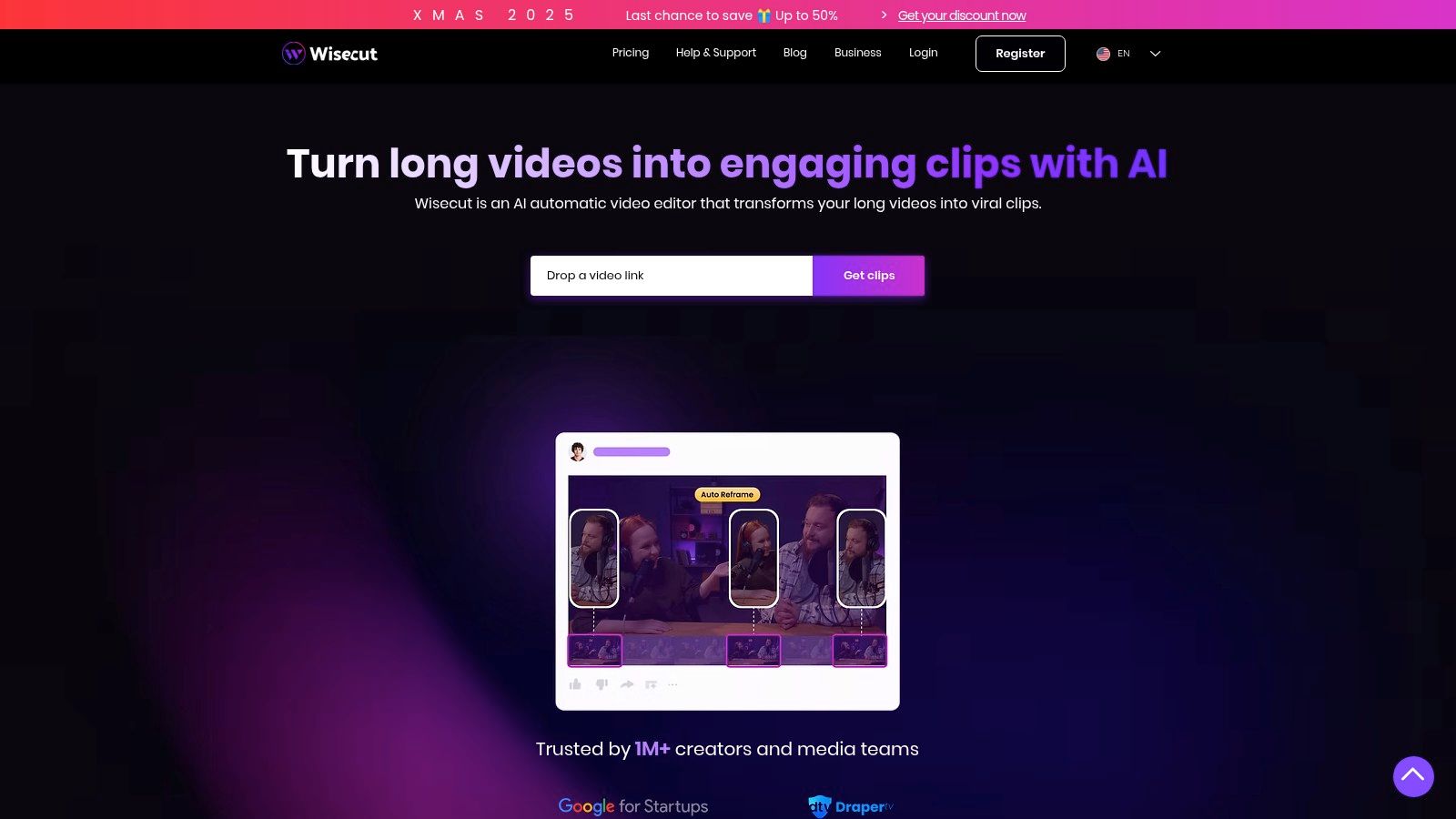
Wisecut is a specialized, web-based tool laser-focused on automating the most tedious aspects of editing dialogue-heavy videos. Its core strength is its ability to transform raw, talking-head footage into a polished, engaging final product with minimal manual effort. This makes it a contender for the best AI tool for video editing for free, especially for creators like coaches, educators, and podcasters who need to produce content quickly.
The platform’s AI is designed to intelligently identify and remove awkward pauses, filler words, and long silences, automatically creating jump cuts that improve pacing. This automated rough-cut process is a massive time-saver, handling the groundwork so creators can focus on higher-level narrative and messaging.
Core AI Features & Use Cases
Wisecut’s AI toolkit is built for efficiency in dialogue-driven content. The automatic silence and filler word removal is its standout feature, cleaning up "ums" and "ahs" to create a more professional-sounding delivery. The platform also offers smart background music that automatically adjusts its volume to complement the speaker's voice, along with auto-generated captions to improve accessibility.
These features are foundational for creators looking to streamline their workflow. While Wisecut excels at cleaning up audio and video, platforms like Tubentum take the next step by generating the entire video structure, including b-roll and transitions, from a simple script.
Practical Tip: Upload a long, unedited webinar or coaching call to Wisecut to quickly generate a series of polished, shareable micro-clips for social media. Let the AI handle the initial cuts and pacing.
Pricing and Limitations
- Free Plan (Trial): Offers limited minutes of processing, watermark-free exports at 720p, and access to core AI features.
- Paid Plans (Starting at $10/mo): Unlocks more processing hours, 1080p and 4K exports, increased cloud storage, and priority support.
The free access is primarily a trial, making it suitable for testing the platform on a few short videos. The true power and higher resolutions are reserved for subscribers. For creators seeking a more comprehensive, script-to-video solution without usage limits, alternatives like Tubentum provide a more direct path from idea to finished video. To learn more about this workflow, you can see how to remove filler words from a video.
- Website: Wisecut
11. Gling
Gling positions itself as a specialized pre-editor, built to save creators massive amounts of time on the initial, most tedious part of their workflow: the rough cut. It’s designed specifically for talking-head videos, such as YouTube monologues, tutorials, and interviews. Its core strength is its AI's ability to analyze footage and automatically trim out silences, filler words, and bad takes before you even open your main editing software.
This focus on creating a clean timeline makes it an invaluable tool for creators who need to produce long-form content efficiently. Gling essentially performs the first pass of edits, presenting you with a tightened, coherent video that’s ready for creative refinement in a professional non-linear editor (NLE).
Core AI Features & Use Cases
Gling’s AI excels at silence and filler word removal. It intelligently identifies and cuts pauses, "ums," "ahs," and other disfluencies, drastically reducing the initial cut-down time. For podcasters and YouTubers, this feature alone can reclaim hours per video. It also supports multicam editing, making it a strong choice for interview setups.
The platform generates AI captions and even offers experimental b-roll suggestions to help visualize the narrative. Its most powerful feature for professional workflows is the ability to export an XML timeline directly to Premiere Pro, Final Cut Pro, or DaVinci Resolve, preserving the AI's cuts for further editing.
Practical Tip: Use Gling to process your raw footage immediately after recording. Export the XML to your preferred NLE to start with a clean, pre-cut timeline, allowing you to bypass the rough cut phase and dive straight into adding b-roll, graphics, and color grading.
Pricing and Limitations
- Free Plan: Allows processing of 30 minutes of footage per month with watermarks and limited export options.
- Paid Plans (starting from $15/mo): Offer more processing hours, watermark-free exports, full XML timeline exports, and additional features.
The free plan is best suited for testing the platform on short clips. The watermarks and limited processing time mean serious creators will need to upgrade. While Gling is excellent for cleaning up footage, it doesn't automate the full video creation process. Platforms like Tubentum offer a more end-to-end solution by generating the entire video, including b-roll and transitions, from a single script.
- Website: Gling
12. YouTube Create
YouTube Create is Google's official, mobile-first video editor, built specifically to streamline the workflow for creators publishing directly to its platform. Its core advantage is its deep integration with the YouTube ecosystem, eliminating app-switching and simplifying the process of creating polished Shorts and mobile videos. This makes it a contender for the best AI tool for video editing for free, especially for on-the-go creators.
The app focuses on speed and convenience, leveraging AI to handle tedious tasks that are particularly cumbersome on a mobile device. Its AI-driven features are designed to get content ready for publishing in just a few taps, directly from your phone.
Core AI Features & Use Cases
YouTube Create’s AI tools are practical and effective for mobile workflows. The auto-captions feature generates subtitles with one tap, a crucial element for viewer accessibility and engagement on Shorts. The audio cleanup tool is another standout, using AI to reduce background noise and enhance voice clarity, which is invaluable for creators recording in imperfect environments.
Its simple interface includes access to YouTube's royalty-free music library and various effects, but the AI shines in simplifying essential edits. While it covers basics like captions and audio, it doesn't offer the advanced generative AI found in platforms like Tubentum, which can create entire video segments from text prompts. For a deeper dive, learn more about effective YouTube editing techniques.
Practical Tip: After filming a clip on your phone, immediately use the audio cleanup tool in YouTube Create. This small step can dramatically improve the professionalism of your final video before you even begin trimming.
Pricing and Limitations
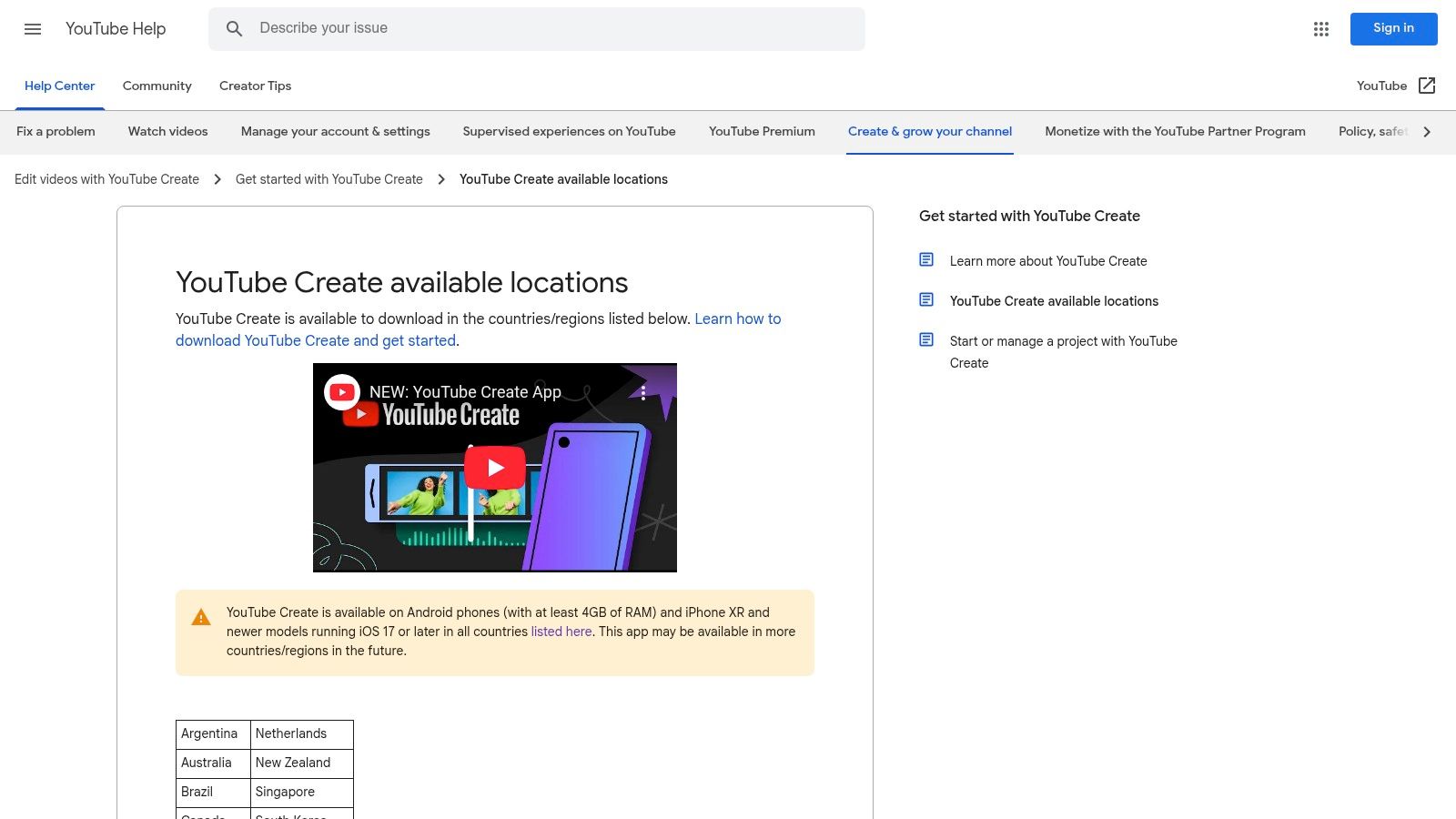
- Free Plan: Completely free to use. Requires an Android device (4GB RAM+) or an iPhone XR or newer (iOS 17+).
The primary limitation is its mobile-only nature, lacking the advanced timeline controls of a desktop NLE. Some of its newer AI creation tools may also be region-locked or OS-gated as they are gradually rolled out. Once you've created your video with YouTube Create, consider best practices for optimizing your YouTube video uploads to maximize its reach and impact.
- Website: YouTube Create Support Page
12 Free AI Video Editors — Feature Comparison
| Tool | Core features (✨) | Quality (★) | Price / Value (💰) | Target audience (👥) | Best for (🏆) |
|---|---|---|---|---|---|
| Microsoft Clipchamp | ✨ Auto-captions, silence removal, 1080p free, MS365 brand kit | ★★★★ | 💰 Free 1080p; 4K & stock via MS365 | 👥 Casual creators, YouTubers | 🏆 Free 1080p exports & MS integration |
| Blackmagic DaVinci Resolve | ✨ Timeline editing, Fusion VFX, Fairlight audio, AI tools | ★★★★★ | 💰 Powerful free; Studio = one‑time paid | 👥 Pro editors, colorists, serious creators | 🏆 Pro-grade color & NLE with one-time upgrade |
| CapCut | ✨ Auto-captions, bg removal, reframing, large asset library | ★★★★ | 💰 Free core; Pro for premium assets/features | 👥 Short‑form & mobile-first creators | 🏆 Fast template-driven social edits |
| Descript | ✨ Transcript-based editing, filler removal, Studio Sound | ★★★★★ | 💰 Free limited hours/credits; paid for 4K & more AI | 👥 Podcasters, coaches, conversational creators | 🏆 Text-first talking‑head cleanup |
| Runway | ✨ Generative models, editor, captions; browser-based | ★★★★ | 💰 Free credits; subscription for heavy generative use | 👥 Creators needing generative VFX & prototyping | 🏆 Cutting-edge generative effects in-browser |
| VEED.IO | ✨ Subtitles, eye‑contact, noise removal, AI playground, teams | ★★★★ | 💰 Free basics; paid/credits for high quality & AI | 👥 Teams, marketers, social editors | 🏆 Captioning/translation + team collaboration |
| Kapwing | ✨ Auto-subtitles, translate, lip-sync, TTS (credit-metered) | ★★★ | 💰 Free (watermark/720p); clear credit pricing | 👥 Casual creators, educators, marketers | 🏆 Simple browser repurposing & clear credits |
| Canva Video Editor | ✨ Magic Media T2V, Magic Animate, auto highlights, templates | ★★★★ | 💰 Free 5 GB; Pro unlocks premium AI & stock | 👥 Non‑designers, social teams, small businesses | 🏆 Template-driven quick social intros |
| InVideo AI | ✨ Script-to-video, AI avatars & voices, templates | ★★★ | 💰 Free w/ watermark; paid for minutes & quality | 👥 Marketers, social advertisers, agencies | 🏆 Rapid script‑to‑video marketing drafts |
| Wisecut | ✨ Auto silence/filler cuts, smart music, pacing, captions | ★★★★ | 💰 Trial/free limited; paid for hours & 1080p/4K | 👥 Creators, coaches, educators | 🏆 Purpose-built talking‑head cleanup |
| Gling | ✨ Auto-cut silences/fillers, multicam, XML export to NLE | ★★★★ | 💰 Free limited; paid for hours & no‑watermark | 👥 YouTubers, long-form/interview creators | 🏆 Fast clean timelines & NLE handoff |
| YouTube Create | ✨ Auto-captions, noise reduction, Shorts tools, native publish | ★★★ | 💰 Free; mobile-only | 👥 Mobile creators, Shorts publishers | 🏆 Quick on-device Shorts publishing |
The Shortcut to Effortless Business Video Production
Navigating the expansive landscape of free AI-powered video editing tools reveals a transformative shift in content creation. The journey from raw footage to a polished, professional video, once a monumental task requiring hours of meticulous work, is now significantly streamlined. We've explored a dozen powerful platforms, from the comprehensive, node-based editing power of DaVinci Resolve to the user-friendly, template-driven approach of Canva. Each tool offers a unique set of features designed to simplify the editing process for modern creators and businesses.
The common thread weaving through these solutions is the power of artificial intelligence to automate repetitive tasks. Features like automatic captioning in CapCut, text-based editing in Descript, and AI-powered background removal in VEED.IO are no longer novelties; they are becoming standard expectations. This automation is the key to reclaiming your most valuable asset: time. For coaches, consultants, and marketers, this means less time spent wrestling with a timeline and more time dedicated to strategy, client work, and content ideation.
Key Takeaways: Choosing Your Ideal AI Editing Partner
The central challenge is no longer a lack of options, but rather selecting the best AI tool for video editing free of charge that aligns perfectly with your specific workflow. Your choice should be a strategic one, based on your content style, technical comfort level, and ultimate business goals.
To make this decision, consider these critical factors:
- Workflow Integration: How does the tool fit into your existing content creation process? A tool like Descript is ideal if your workflow is script-centric, allowing you to edit video as you would a text document. Conversely, if your focus is on creating quick, visually appealing social media clips, a platform like CapCut or InVideo AI might be a more natural fit.
- Primary Content Type: Are you producing long-form talking-head videos for YouTube, or short, punchy promotional content for social media? Tools like Gling and Wisecut are purpose-built to automatically edit long-form dialogue, while platforms like Runway excel at generative AI and visual effects that make short-form content stand out.
- The "Heavy Lifting" Problem: The most significant time-sink in business video editing is often the initial rough cut. This involves painstakingly removing filler words ("um," "ah"), trimming awkward silences, and eliminating redundant takes. While many of the tools listed can perform these tasks, they often require manual intervention or exist as one feature among many.
The Ultimate Shortcut: From Raw Footage to Polished Video
This brings us to a crucial insight. The ideal state for a busy creator or business owner is not just a tool that simplifies editing, but one that automates the most tedious parts of it almost entirely. You need a solution that acts as your dedicated AI editor, handling the painstaking process of cleaning up raw footage with precision and speed.
This is where a specialized tool like Tubentum offers a compelling advantage. It is designed with one primary goal: to provide a direct shortcut from raw, unedited talking-head video to a clean, engaging final cut. With a single click, Tubentum's AI analyzes your footage and automatically:
- Removes silent gaps to maintain a dynamic pace.
- Cuts filler words and repeated phrases for a more professional delivery.
- Identifies and repositions your best hooks to the beginning of the video, maximizing viewer retention from the crucial first few seconds.
While the comprehensive free tools we've reviewed provide an excellent foundation, Tubentum zeroes in on the most time-consuming pain point for business-focused creators. It's the "easy button" that handles the foundational edit, allowing you to then take that polished file into a tool like CapCut or Canva for final branding and visual enhancements. This specialized approach represents the next evolution in finding the best AI tool for video editing free of bottlenecks, empowering you to scale your video production without scaling your workload.
Ready to eliminate the most time-consuming part of your video editing workflow? Discover how Tubentum can automatically clean up your raw footage in a single click, saving you hours on every video. Try the AI-powered shortcut designed for business creators today. Visit Tubentum to get started.