Why These 8 YouTube Video Editing Tips Matter
Polished, efficient video edits drive viewer engagement and save creators hours in post-production. Long editing cycles and inconsistent branding can cost you viewers and revenue.
These practical youtube video editing tips focus on high-impact techniques to elevate your talking-head business videos without turning you into a full-time editor. With Tubentum integration at every stage, you’ll cut edit time by up to 80 percent.
You’ll discover:
- J-Cuts and L-Cuts methods for seamless transitions
- Quick color grading and correction for brand consistency
- Strategic B-roll placement and motion graphics to boost retention
- Pacing techniques that maintain audience interest
- Audio cleanup routines and sound effect enhancements
- Strong hooks, text overlays, and on-brand thumbnail guidance
- Efficient batching, repurposing tactics, and caption workflows
- Multi-camera editing shortcuts and match-cut continuity
Each tip includes actionable steps and real-world examples tailored to coaches, consultants, and marketers. We also highlight how Tubentum’s one-click auto-editing transforms raw footage into ready-to-publish business videos in minutes, making it your secret weapon for consistent, polished results.
No matter your editing software, these youtube video editing tips adapt to any platform. Tubentum plugins and presets integrate seamlessly with Premiere Pro, Final Cut Pro, and DaVinci Resolve to save clicks and maintain consistency.
By applying these youtube video editing tips, you’ll streamline your workflow, maintain a professional look, and engage viewers from the first second. Skip the steep learning curve and jump straight into proven strategies that improve both quality and speed. Ready to revolutionize your editing process? Let’s get started.
1. J-Cuts and L-Cuts for Smooth Transitions
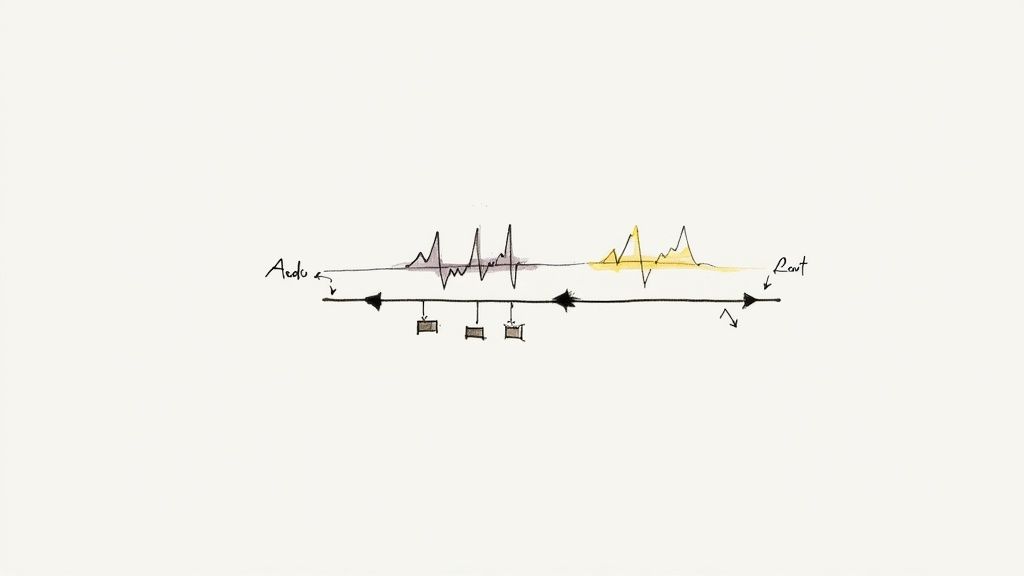
J-cuts and L-cuts are editing techniques where audio transitions before or after the visual cut. By overlapping sound and picture, you keep viewers engaged and make your content feel polished. This method is a staple in professional workflows and a must-know in your arsenal of youtube video editing tips.
What Are J-Cuts and L-Cuts?
- J-Cut: Audio from the next clip starts playing before the visual switches
- L-Cut: Audio from the previous clip continues after the picture has already changed
These cuts create a more natural flow in talking-head videos, giving your audience subtle audio cues that signal an upcoming topic shift.
Why Use These Overlaps?
- Maintain conversational flow
- Smooth out scene changes
- Reduce abrupt silences or visual jumps
“Overlap audio and video to keep narrative momentum and make your talking-head content feel seamless.”
In business-focused videos, J-cuts and L-cuts help you introduce new ideas or guest speakers while preserving context. They also boost perceived production value, which can translate into higher viewer retention.
Implementation Tips
- Start with 0.5–1 second overlap for subtlety
- Use J-cuts to preview your next point before cutting visuals
- Apply L-cuts when you switch camera angles but keep the same dialogue
- Balance audio levels so overlapping tracks don’t compete
- Experiment with longer overlaps (up to 2 seconds) for emphasis
- Leverage Tubentum’s auto-editing: its AI can detect pauses and suggest J/L cut points instantly
Real Examples from Business Creators
- HubSpot Academy uses J-cuts to introduce software demos while maintaining voiceover continuity
- Corporate webinar teams apply L-cuts when switching between host and interviewee feeds
- Consultant channels leverage both cuts to integrate on-screen data graphics
By integrating J-cuts and L-cuts, you transform basic cuts into professional transitions. Using Tubentum’s timeline automation, you save editing time and hit that ideal polished state faster. This tip belongs at the top of your list of youtube video editing tips for business creators.
2. Color Grading and Color Correction
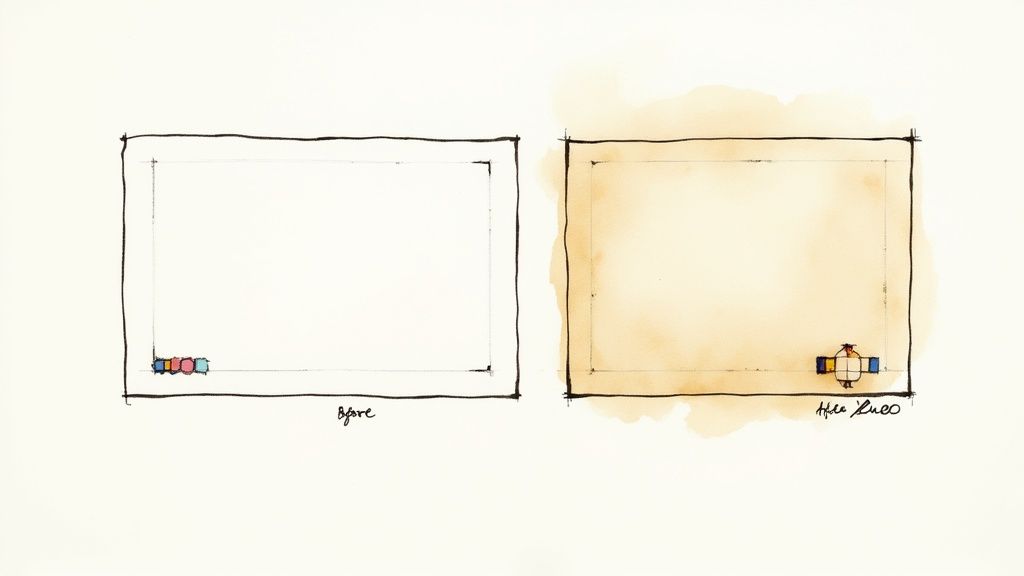
Color correction adjusts your footage for accurate exposure, white balance, and consistent skin tones. Color grading then applies a creative look or mood that reinforces your brand identity. Together, they transform raw recordings into polished content that feels cohesive and professional in any business context.
What Are Color Correction and Color Grading?
- Color Correction: The technical process of balancing exposure, contrast, and white balance so all clips match.
- Color Grading: The creative stage where you apply LUTs or manual tweaks to set a specific style, tone, or mood.
These steps ensure consistency across cameras, lighting conditions, and shooting days. Properly corrected footage prevents distractions, while intentional grading reinforces the theme of your talking-head videos.
Why Use These Techniques?
- Maintain visual continuity throughout interviews, tutorials, and presentations
- Evoke the right emotional response—warm tones for friendly tutorials, cooler hues for serious business updates
- Strengthen brand recognition by reusing signature color palettes in each episode
“A consistent color workflow is one of the most impactful youtube video editing tips for turning raw footage into binge-worthy content.”
In a business environment, well-graded footage conveys quality and attention to detail. Tubentum’s batch color correction and custom preset library accelerate this process, letting you apply a unified look across dozens of clips in seconds.
Implementation Tips
- Calibrate your monitor in a neutral, dimly lit room for accurate judgment
- Always perform color correction before grading to avoid compounding errors
- Start with industry-standard LUTs, then fine-tune curves, highlights, and shadows
- Build and save custom presets tied to your brand’s palette for quick reuse
- Grade under consistent room lighting to prevent eye fatigue and hue shifts
- Preview on multiple devices—desktop, mobile, and tablet—to ensure universal appeal
Real Examples from Business Channels
- HubSpot Academy applies a warm, brand-aligned LUT to highlight software UI elements
- LinkedIn Learning uses neutral tones for professional course videos, ensuring on-screen text stands out
- Shopify’s product demos leverage vibrant brand colors to emphasize features in marketing walkthroughs
- Corporate webinar channels maintain consistent palettes across episodes for cohesive branding
By embedding robust color correction and grading workflows into your editing, you elevate production value and viewer trust. Leverage Tubentum’s automated color tools and preset management to streamline your process and deliver on-brand, eye-catching videos every time.
3. Strategic Use of B-Roll and Visual Storytelling
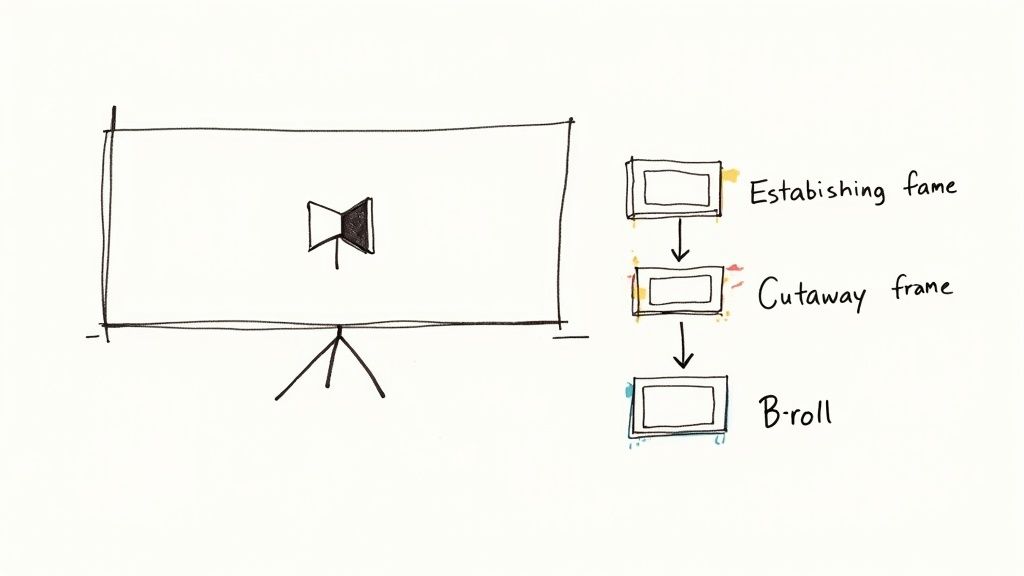
Strategic B-roll transforms a static talking-head video into a dynamic narrative. By weaving in supplementary footage—establishing shots, close-ups, cutaways—you break monotony, reinforce your message, and keep viewers engaged. This approach is indispensable among top youtube video editing tips for business-focused creators.
What Is B-Roll and Visual Storytelling?
- B-Roll: Supplementary clips that illustrate or emphasize points you’re making on camera
- Visual Storytelling: Sequencing images in a way that supports or enhances verbal narrative
- Storyboarding: Pre-planning shot lists to ensure B-roll aligns with talking points
B-roll enriches your narrative by giving concrete visuals to abstract ideas. It also boosts perceived production value and aids viewer comprehension.
Why Use B-Roll Strategically?
- Break up long talking-head segments and avoid viewer fatigue
- Provide visual proof or examples of claims you make
- Guide viewer attention to key details or on-screen text
- Increase watch time by adding movement and variety
“Well-timed B-roll not only illustrates your points but also maintains momentum and drives up retention.”
In professional or business videos, strategic B-roll can demonstrate product features, showcase office environments, or highlight case-study results without lengthy narration.
Implementation Tips
- Shoot 3–5x more footage than your planned runtime
- Capture B-roll from multiple angles and distances
- Sync B-roll cuts with audio beats or verbal transitions
- Combine extreme close-ups with wide shots for visual variety
- Plan B-roll during scripting, not as an afterthought
- Leverage Tubentum’s AI marker detection to auto-suggest B-roll insertion points
Real Examples from Business Creators
- HubSpot shows close-ups of on-screen demos to illustrate software features
- LinkedIn Learning intercuts instructor desktop recordings and office shots for context
- Case study channels deploy chart and graph cutaways to reinforce data points
- Product demo teams open with office establishing shots before diving into specs
By integrating B-roll thoughtfully and using Tubentum’s auto-edit features, you accelerate your workflow and elevate your talking-head videos. Effective B-roll planning is a cornerstone of high-impact youtube video editing tips—ensuring your content looks polished and keeps audiences watching. Visit https://tubentum.com to streamline your B-roll workflow.
4. Pacing and Rhythm Through Cuts and Transitions
Pacing and rhythm define how quickly you cut between shots and apply transitions in your videos. By aligning edits with audio beats, dialogue, music, and the natural flow of your content, you transform a technically correct edit into an emotionally resonant experience. This tip is a cornerstone among your youtube video editing tips for talking-head creators.
What Is Pacing and Rhythm?
- The speed at which cuts occur between shots
- How transitions sync with music or spoken words
- Balancing fast cuts for energy and slow cuts for contemplation
- Using rhythm to guide viewer attention and emotion
Why Master Pacing and Rhythm?
- Sustain viewer engagement from start to finish
- Evoke excitement with rapid cuts or calm with longer holds
- Reinforce key points by cutting on dialogue endpoints
- Elevate perceived production quality in business videos
“Deliberate pacing turns a sequence of clips into a narrative heartbeat that keeps audiences connected emotionally.”
Professional creators match cut timing to on-screen action and soundtrack peaks. In corporate training videos, moderate pacing (5–15 second cuts) feels conversational and clear. For product teasers, a quicker pace drives excitement and urgency.
Implementation Tips
- Cut on strong audio beats or dialogue pauses for natural flow
- Vary shot length – avoid uniform cuts every second or minute
- Use a metronome or music track to practice beat-matching
- Watch your edit as a viewer to identify pacing lulls
- Reference similar corporate channel videos to benchmark your rhythm
- Leverage Tubentum’s beat detection feature to auto-suggest cut points
Real Examples from Business Videos
- Webinar hosts use moderate pacing (5–10 second cuts) to keep presentations clear
- Corporate training modules hold shots longer (8–12 seconds) for complex topics
- Product launch teasers apply quicker cuts to generate momentum
- LinkedIn Learning instructors adjust pacing to maintain learner focus
By mastering pacing and rhythm through precise cuts and transitions, you ensure every second serves your message. Tubentum’s AI-powered timeline automation and beat detection help you hit the ideal state faster, making this approach an essential pillar in your arsenal of youtube video editing tips.
5. Text Overlays and Motion Graphics
Text overlays and motion graphics enhance communication, emphasize key points, and add visual interest to your talking-head videos. By reinforcing spoken information with on-screen text and subtle animations, you boost accessibility for silent viewers and strengthen message recall. These techniques also add personality and polish that align with professional youtube video editing tips.
What Are Text Overlays and Motion Graphics?
- Text Overlays: Static or animated captions, lower thirds, bullet highlights
- Motion Graphics: Animated elements such as kinetic typography, icons, charts
- Purpose: Clarify spoken points, identify speakers, visualize data
These elements transform flat talking-head footage into dynamic business presentations that hold audience attention and reinforce key messages.
Why Use These Effects?
- Improve retention by pairing audio with visual cues
- Enhance accessibility for viewers watching without sound
- Establish consistent branding through text style templates
- Convey complex information quickly via animated infographics
“Using clear text overlays and gentle motion graphics keeps your content professional and ensures viewers grasp critical details even on small mobile screens.”
In corporate videos or coaching sessions, smart use of typography and motion prevents viewer fatigue and positions your channel as polished and authoritative.
Implementation Tips
- Use large, readable fonts (minimum 24pt) for mobile clarity
- Keep text on screen for 3–5 seconds so viewers can read comfortably
- Synchronize text appearance with key audio cues for maximum impact
- Create a consistent style guide—font, color, sizing—across all videos
- Test readability on phones by previewing exports at 720p
- Apply subtle motion (fade, slide) rather than excessive animation
- Leverage Tubentum’s style presets and motion templates to auto-apply branded overlays in seconds
Real Examples from Business Creators
- HubSpot Academy uses animated statistics to break down marketing data
- Moz employs motion charts to visualize SEO metrics
- News broadcasts rely on lower thirds for speaker names and titles
- LinkedIn Learning layers dynamic text to reinforce key concepts
By integrating text overlays and motion graphics, you deliver clear, memorable messages that stand out in crowded feeds. Tubentum’s auto-style and motion features help you roll out branded animations faster, making this tip a must in your youtube video editing tips toolkit.
6. Audio Design and Sound Effects Enhancement
Professional audio design is as vital as visual polish for talking-head videos. Viewers will tolerate shaky cuts or simple graphics, but poor audio quality immediately breaks immersion. By layering ambient sound, Foley effects, and well-mixed music, you create a richer sensory experience that elevates your production value and keeps audiences engaged.
What Is Audio Design and Sound Effects Enhancement?
- Ambient Sound: Background audio that sets context, from office chatter to conference hall ambiance
- Foley Effects: Custom-recorded sounds like keyboard clicks or paper shuffles for natural impact
- Sound Effects (SFX): Emotional hits, risers, whooshes, and transitions that accentuate cuts
- Mixing and Equalization: Balancing dialogue, music, and effects for clarity and consistency
Why Invest in Professional Audio?
- Maintain viewer attention, since unclear sound drives viewers away within seconds
- Enhance perceived quality; crisp audio suggests higher production standards
- Add immersion and emotional cues, making calls to action more compelling
“Quality audio sets your content apart and keeps viewers focused from start to finish.”
In business-focused videos, clear audio builds trust and credibility. Tubentum’s AI tools simplify noise removal and auto-level recommendations, so you spend less time tweaking settings and more time recording great content.
Implementation Tips
- Invest in a quality microphone (USB or XLR) and pop filter
- Record in a quiet space and monitor levels in real time
- Use Tubentum’s AI to remove background noise and normalize dialogue
- Level dialogue peaks around -6dB and place music 3–5dB below speech
- Layer tracks: dialogue, sound effects, ambient, then music for depth
- Preview audio on phone, laptop, and headphones before publishing
Real Examples from Business Channels
- GaryVee uses energetic backing tracks and sharp SFX for call-to-action emphasis
- Online course platforms ensure crisp voiceovers with noise reduction workflows
- Corporate podcasts layer subtle ambient sounds for professional polish
- Webinar recordings benefit from auto-leveling to maintain a consistent volume
By prioritizing audio design and sound effects enhancement, you transform flat talking-head content into an immersive, professional presentation. Leverage Tubentum’s timeline automation and background noise filters as a shortcut to top-tier audio. Learn more about Audio Design and Sound Effects Enhancement on tubentum.com.
7. Match Cuts and Visual Continuity
Match cuts connect two shots through visual or conceptual similarities like shape, color, or motion. By bridging scenes with matched elements you maintain visual continuity and reduce jarring cuts while adding creative storytelling that feels intentional. In talking head videos this technique transforms standard segments into memorable branded moments.
What Are Match Cuts and Visual Continuity?
- Shape Match: Align similar forms - a round clock dissolves to a circular logo
- Color Match: Transition on dominant hues - blue sky fades into blue graphic
- Motion Match: Bridge movement - a camera pan right cuts to another pan right
- Conceptual Match: Link ideas - a flipped page to a slide transition
These patterns tie your footage across time and space suggesting relationships between subjects without explicit explanation.
Why Use These Transitions?
- Create seamless storytelling across disparate clips
- Enhance perceived production value instantly
- Keep viewers focused by reducing abrupt visual jumps
- Guide audience expectations through clever framing
- Reinforce your brand identity with consistent visual motifs
“Match cuts transform simple edits into memorable moments that guide your audience visually and mentally through your narrative.”
In business-focused talking head videos match cuts can link topic shifts, data visuals, or product shots seamlessly. You save editing time and maintain brand consistency when transitions feel purposeful. Tubentum’s AI timeline analysis can detect matching shapes and colors helping you implement these cuts in seconds.
Learn more about match cuts and visual continuity on domain.com
Implementation Tips
- Plan matching elements on set when you storyboard each segment
- Scan your clips in Tubentum’s editor to find potential match points
- Match camera moves - sync pans, tilts, or zooms for perfect flow
- Use dominant color frames to connect brand graphics to live footage
- Study corporate promo videos to spot effective match cuts
- Practice spotting match cuts in rough assemblies before final trim
- Avoid forcing a match - natural links deliver the best impact
Real Examples from Business Creators
- Corporate training videos link slide decks to on-screen speaker framing
- Webinar recaps match graphics to speaker gestures for a seamless flow
- Product launch content bridges UI animations to live demo shots
- Consulting channels use shape matches between data charts and physical products
Mastering match cuts and visual continuity elevates your edits from functional to engaging. With Tubentum’s automation handling match detection you hit polished professional results faster than manual workflows.
8. Multi-Camera Editing and Dynamic Cuts
Multi-camera editing and dynamic cuts involve seamlessly switching between two or more camera angles to inject energy and variety into talking-head videos. By intercutting wide, medium, and close-up shots, you create a more engaging visual rhythm that holds audience attention. This technique transforms static presentations into dynamic narratives, making your content feel more polished and professional.
What Is Multi-Camera Editing and Dynamic Cuts?
- Multi-Camera Editing: Combining footage from multiple cameras shot simultaneously or from different takes
- Dynamic Cuts: Rapidly switching angles on subject movement, dialogue endpoints, or visual beats
- Visual Rhythm: Alternating wide, medium, and close shots to avoid monotony
- Perspective Variety: Offering multiple viewpoints, such as facecam, screen overlay, and environment
These elements work together to maintain visual interest in tutorials, interviews, and live demonstrations.
Why Use These Angles and Cuts?
- Keep viewers engaged with fresh perspectives every few seconds
- Highlight key moments by zooming in or cutting to reaction shots
- Build energy and pacing in challenge videos or product demos
- Reduce viewer fatigue from long single-angle footage
“Switching angles at natural breakpoints creates a cinematic flow without adding complex effects.”
In business-focused videos, dynamic cuts help illustrate step-by-step processes, showcase product details, and emphasize speaker reactions. They also reinforce brand professionalism and boost perceived production value.
Implementation Tips
- Sync Clips First: Use audio waveforms or timecode to align all camera files precisely
- Organize with Naming: Label files by angle (wide, medium, close) for quick selection
- Cut on Movement: Shift angles at subject gestures, transitions in dialogue, or scene changes
- Vary Cut Frequency: Aim for a new angle every 3–5 seconds, but avoid jarring jumps
- Balance Audio Levels: Normalize sound across all camera sources for consistent volume
- Create Shot Patterns: Cycle through wide–medium–close to establish a visual sequence
- Preview Flow: Play back multi-camera sequences in real time to test pacing
Real Examples from Business Creators
- Webinar streams switch between host, presentation screen, and audience reactions
- Consulting channels cut between speaker close-ups and on-screen slides for clarity
- Live event recaps intercut stage, crowd, and interview angles
- Product demo videos alternate between wide overview and detailed close-ups
By mastering multi-camera editing and dynamic cuts, you elevate basic recordings into compelling business content. Leveraging Tubentum’s automated timeline tools, you can sync angles and experiment with cut rhythms faster than manual workflows. Learn more about Multi-Camera Editing and Dynamic Cuts to streamline your youtube video editing tips and hit that polished look in minutes.
YouTube Video Editing: 8-Point Comparison
| Technique | Implementation Complexity 🔄 | Resource Requirements ⚡ | Expected Outcomes ⭐📊 | Ideal Use Cases 💡 | Key Advantages ⭐ |
|---|---|---|---|---|---|
| J-Cuts and L-Cuts for Smooth Transitions | Medium — needs precise timing and sync | Low — any editor, modest extra edit time | ⭐ Smooth, professional transitions; better continuity | Vlogs, webinars, interviews | Maintains narrative flow; reduces jarring cuts |
| Color Grading and Color Correction | High — steep learning curve for advanced looks | Medium–High — color tools, calibrated monitor, time | ⭐ Cinematic look; consistent visual identity | Brand videos, tutorials, demos | Transforms footage; sets mood and tone |
| Strategic Use of B-Roll and Visual Storytelling | Medium — requires planning and shot variety | Medium — more shooting/storage or stock footage | ⭐ Higher retention; richer storytelling and proof | Product demos, case studies, training | Adds visual variety; hides jump cuts |
| Pacing and Rhythm Through Cuts and Transitions | High — requires musical ear and timing sense | Low–Medium — editing time, music selection | ⭐ Improved engagement; controls emotional response | Webinars, teasers, training modules | Controls tempo; enhances emotional impact |
| Text Overlays and Motion Graphics | Medium — design + timing skills needed | Low–Medium — templates/software, design time | ⭐ Better comprehension and accessibility | Educational content, social media, shorts | Emphasizes key points; improves readability |
| Audio Design and Sound Effects Enhancement | High — advanced mixing and design skills | High — quality mics, SFX libraries, editing tools | ⭐ Dramatically increases polish and immersion | Corporate videos, podcasts, webinars | Guides attention; adds emotional depth |
| Match Cuts and Visual Continuity | High — needs intentional framing and planning | Medium — extra coverage and editing effort | ⭐ Seamless, creative transitions; memorable edits | Corporate promos, case studies, webinars | Elevates storytelling; strengthens visual links |
| Multi-Camera Editing and Dynamic Cuts | High — complex syncing and workflow | High — multiple cameras, powerful hardware | ⭐ Dynamic, engaging viewer experience | Interviews, live streams, demos | Multiple perspectives; hides mistakes and boosts energy |
Next Steps to Supercharge Your Editing Workflow
You have just digested eight actionable youtube video editing tips that will sharpen your talking-head content. Now it is time to integrate these strategies into your daily process and watch your production quality climb. Follow this roadmap to turn knowledge into results.
Recap of Core Strategies
- J-Cuts and L-Cuts for Smooth Transitions: Blend audio and visuals to maintain energy.
- Color Grading and Correction: Establish a consistent look that supports your brand.
- Strategic B-Roll and Visual Storytelling: Use complementary footage to reinforce key points.
- Pacing and Rhythm Through Cuts: Keep your audience engaged by varying shot lengths.
- Text Overlays and Motion Graphics: Highlight calls to action and key stats.
- Audio Design and Sound Effects: Eliminate distractions and reinforce your message.
- Match Cuts and Continuity: Create seamless scene changes that feel natural.
- Multi-Camera Editing and Dynamic Cuts: Offer varied perspectives to sustain viewer interest.
“Small adjustments in editing can lead to significant boosts in watch time and viewer retention.”
Step-by-Step Implementation
- Pick one tip and apply it to your next video draft.
- Batch similar edits – tackle all color tweaks, then audio clean-up.
- Review engagement metrics after each upload to measure impact.
- Iterate based on audience feedback – refine pacing, overlay styles, or hook placement.
By tackling one element at a time you avoid overwhelm and build a repeatable system.
Leveraging Tubentum in Your Workflow
- Auto-Remove Silences and Filler Words: Save hours on cleanup and maintain a natural pace.
- Instant Hook Placement: Automatically slot in your strongest intro within seconds.
- Batch Processing: Edit multiple videos in one session to streamline your schedule.
- Repurposing Tools: Generate highlight reels and clips for social media with minimal effort.
Integrating Tubentum lets you focus on strategic choices like shot selection, color tweaks, and storytelling rather than manual cut-and-paste chores.
Why Mastering These Techniques Matters
Short-form business videos live or die by engagement metrics. Clean audio, precise pacing, and targeted overlays directly impact watch time, subscriber growth, and brand authority. As you refine each element you will notice:
- Higher retention rates on YouTube
- Increased click-through on end cards and thumbnails
- More shares and comments from an engaged audience
Adopting these youtube video editing tips not only sharpens your videos but also positions your brand as polished and professional.
Turning Skills into Business Results
- Boost Watch Time: Engaging edits keep viewers hooked.
- Improve Conversion: Strategic hooks and overlays guide viewers to action.
- Save Resources: Automated tools cut manual hours and reduce costs.
- Scale Production: Batch editing and repurposing let you produce more content with less effort.
With consistent practice and the right toolkit, you will elevate both your creative output and your bottom line.
Incorporate these steps into your routine, stay curious about new editing methods, and continue experimenting. Your next video could be the one that propels your channel into a new growth phase. Keep refining, keep iterating, and let data guide your decisions.
Your editing journey is just beginning—embrace each tip, leverage smart tools, and watch your content soar.
Ready to take your youtube video editing tips to the next level? Experience how Tubentum can automate silences, filler words, and hook placement so you spend less time editing and more time creating value. Get started now at Tubentum and transform your workflow today.